Mac fan control on Apple Silicon: what you can change, and how
macOS runs your Mac’s fans on its own. What the built-in power modes change, how fan control apps work on Apple Silicon, and which fan mode to pick when.
By winterzxzzUpdated 5 min read
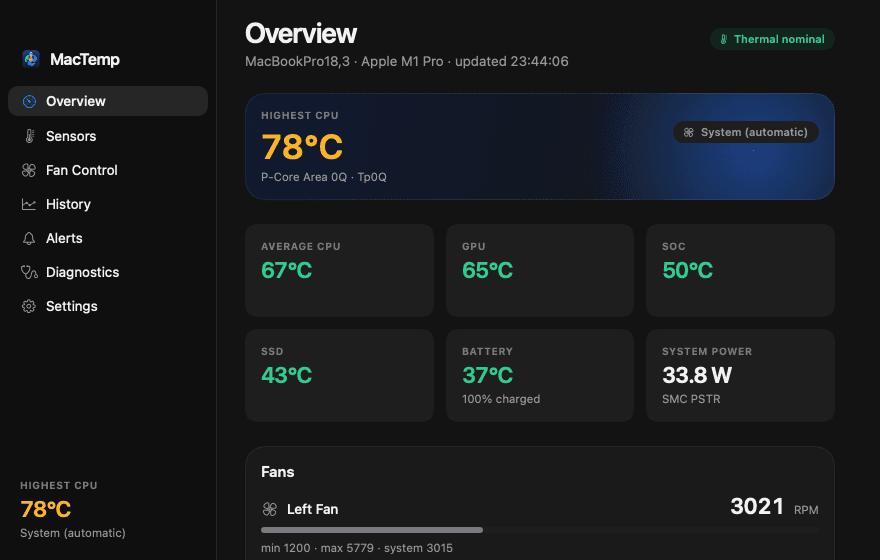
On an Apple Silicon Mac, macOS decides how fast the fans spin and gives you no slider to change it. You can influence fan behaviour indirectly with the built-in power modes, and you can take direct control with a third-party app that writes fan targets through a small privileged helper. This guide covers both, explains the common fan modes, and shows how it works in MacTemp, the temperature and fan monitor we make. Fan control is the part of it to treat with the most care.
How macOS runs the fans
Apple says that Mac laptops with fans turn them on automatically to cool critical components. The Mac’s system management controller (SMC) knows each fan’s minimum and maximum speed and sets a target for each fan based on temperatures and load. A fan monitor app can show you that target next to the actual speed.
Not every Mac has a fan to control. Apple’s current MacBook Air has a fanless design, so any fan app can only show temperatures on it. MacTemp does the same: on a fanless Mac it is a temperature monitor.
What you can change without an app
- Low Power Mode reduces energy use. Apple says that on macOS Sequoia 15.1 or later it also helps reduce fan noise on Macs with active cooling. Turn it on in System Settings → Battery (Energy on a desktop Mac) from the “On battery” or “On power adapter” menu, or from Control Center in 15.1 or later.
- High Power Mode goes the other way: Apple says it lets the fans run at higher speeds for very intensive work. It’s available on some Macs only — recent MacBook Pro models with Pro or Max chips, Mac mini with an M-series Pro chip, and Mac Studio introduced in 2026, per Apple’s list.
- Less heat in the first place. A hard surface, a cooler room and quitting runaway processes all lower the fan target. See why a MacBook gets hot for the checklist.
Those are the only levers macOS offers. You can’t tell it “start the fans earlier” or “never go below 2,500 RPM”.
How fan control apps work on Apple Silicon
Fan control apps — TG Pro, Macs Fan Control, iStat Menus and MacTemp among them — work by asking the SMC to use a target speed of their choosing instead of its own. Changing fan speeds needs elevated rights, so it’s done by a separate background component rather than the app window itself: TG Pro, for example, describes a dedicated service that handles fan adjustments and checks that commands come from TG Pro. MacTemp uses a small helper that runs as root and accepts requests only from MacTemp. Two things follow from that:
- You approve the helper. On current macOS, a background helper like this has to be allowed by you. For MacTemp it’s registered only when you click Install helper on the Fan Control page, and you allow it in System Settings → General → Login Items and Extensions.
- Only one app should be in charge. Two fan apps writing targets at the same time will fight. Keep any other fan app in its automatic or system mode while another one controls the fans.
Until the helper is installed, MacTemp writes nothing. It shows the target a mode would request and labels it as not applied, which is a handy way to try the modes before you commit.
The fan modes, and when to use each
MacTemp has six modes. Other apps use different names for similar ideas.
| Mode | What it does | Good for |
|---|---|---|
| System | macOS decides; MacTemp only watches | Most of the time, and as the safe default |
| Auto Boost | Ramps the fans up as the Mac gets hotter | Long exports or builds where you want cooling to start earlier |
| Rules | “If this sensor is above X, run this fan at Y%”, optionally only on the power adapter or on battery | Specific habits, such as more cooling while charging |
| Custom Curve | Fan speed follows a temperature-to-speed curve you draw | People who want fine control over the noise-to-heat trade-off |
| Manual | One fixed speed you choose for each fan | Short tests, or a steady speed during a known heavy task |
| Maximum | Every fan at full speed | Short bursts, such as cooling down quickly after a heavy job |
Auto Boost, Rules and Custom Curve in MacTemp never request less than macOS was asking for at the moment MacTemp took over. They don’t follow later increases from macOS, so a curve or rule set low can run the fans slower than macOS would under heavier load; the safety limit (95 °C by default) is the backstop. In Manual you pick the number yourself, which is another reason the safety limits below matter.
The safety limits MacTemp applies
- Every request is clamped between the fan’s own minimum and maximum speed.
- If any CPU, GPU or SoC sensor reaches the safety limit, 95 °C by default, the fans go to maximum until it cools down.
- If those sensors can’t be read, or a write fails, the fans go back to macOS.
- The helper is built to hand fans back to macOS if MacTemp quits or goes quiet.
- MacTemp doesn’t change macOS’s thermal limits or shutdown protection. While it controls a fan, though, it overrides the speed macOS would pick for that fan.
Our separate guide, is it safe to control your Mac’s fans?, goes through the risks in more detail — including what is and isn’t tested yet in MacTemp’s beta.
How to give control back to macOS
- In MacTemp, choose System on the Fan Control page or in the menu bar popover’s Mode menu.
- To remove fan control entirely, click Uninstall helper on the Fan Control page.
- To remove the app, uninstall the helper first, quit MacTemp, then delete it from Applications.
Want to compare apps first? The best Mac temperature monitor apps covers the options, with head-to-heads for MacTemp vs TG Pro and MacTemp vs Macs Fan Control. More guides are in the Mac temperature and fans category, and the details are on the MacTemp page.
Sources
- Apple Support, “About Power Modes on your Mac”: support.apple.com/en-us/101613
- Apple Support, “Keep your Mac laptop within acceptable operating temperatures”: support.apple.com/en-us/102336
- Apple, MacBook Air (fanless design): apple.com/macbook-air
- MacTemp product page and Winter Labs FAQ (fan modes, helper, safety limits)
More on this topic: Temperature & fans guides · MacTemp
 Temperature & fans