Why is my MacBook hot? Common causes and what to do
A MacBook that runs hot usually has a busy process, a blocked surface, a warm room or a heavy charge. How to find the cause with built-in tools and fix it.
By winterzxzzUpdated 6 min read
Most of the time a MacBook gets hot for an ordinary reason: something is keeping the processor busy, the laptop is sitting on a surface that traps air, the room is warm, or it’s charging while working hard. Warm during a long export or a video call is normal. Hot while you’re only reading email is worth a look. Below are the common causes, how to check each one with tools that come with macOS, and what to change. At the end we show where a temperature monitor such as MacTemp, the app we make, fits in. The built-in steps come first.
First, is it actually too hot?
Apple says its laptops are designed to work in rooms between 10 °C and 35 °C (50 °F to 95 °F), and that models with fans turn them on automatically to cool critical parts. A warm bottom case under load is expected. Apple suggests looking closer when the Mac gets warm even though it isn’t doing anything demanding, or when its fans run for a long time. Those are the two signals this guide is about.
The usual causes
1. A process is keeping the CPU busy
This is the most common reason by far. A browser tab running a heavy page, a stuck helper process, a sync client catching up, or background work after a big update, migration or photo import can all hold the CPU for minutes or hours. Open Activity Monitor, click the CPU tab and sort by % CPU. Anything near the top that you didn’t ask to do work is a suspect. The Energy tab is useful too: it ranks apps by energy impact, a good hint at what is producing the heat.
2. Heavy work you did ask for
Exporting video, compiling code, gaming, running local AI models or driving several external displays make any Mac warm. That isn’t a fault. If it bothers you, work on a hard surface and see the options under “What to do” below.
3. The surface under it
Apple asks you to use a Mac laptop on a stable surface with good ventilation and not on a bed, a pillow or under bedding. Soft surfaces block air around the case and, on models with fans, the vents. Apple also says not to put anything over the keyboard.
4. A warm room or a hot car
Above about 35 °C ambient, a laptop is outside the range Apple designs for, and Apple specifically warns that a parked car can get hotter than that. Direct sun on the case has a similar effect.
5. Charging while it works
Charging adds heat of its own, so a nearly empty MacBook that’s charging and busy at the same time is often the warmest it gets all day. Apple’s battery guidance adds that charging in high ambient temperatures can damage the battery further, and asks you to use only Apple-authorized power adapters. We cover this case in its own guide: MacBook hot while charging.
6. A MacBook Air has no fan
Apple’s current MacBook Air has a fanless design. That makes it silent, but under a long heavy load the only way to get rid of heat is through the case, so it will feel warmer than a MacBook Pro doing the same work. There are no fans to adjust; the fixes are about the workload and the surface.
7. High Power Mode is on
Some MacBook Pro, Mac mini and Mac Studio models offer High Power Mode, which Apple says lets the fans run faster for very intensive work. If you switched it on for a project and forgot, the Mac may run louder than you expect.
What to do
- Find the busy process. In Activity Monitor’s CPU tab, quit anything you don’t need that stays at the top. Window → CPU History shows whether the load is constant or just a burst.
- Close and reopen the lid, or restart. That’s Apple’s next step if a Mac stays warm. On an Intel-based Mac, Apple also suggests resetting the SMC.
- Install software updates. Apple lists keeping macOS up to date among its recommendations.
- Move it to a hard surface with space around it, out of the sun.
- Try Low Power Mode. In System Settings → Battery (Energy on desktops), choose Low Power Mode from the “On battery” or “On power adapter” menu. Apple says that on macOS Sequoia 15.1 or later it also helps reduce fan noise on Macs with fans. In 15.1 or later you can switch energy modes from Control Center too.
- Get help if it continues. If none of this helps, Apple recommends contacting Apple Support or visiting an Apple Store or Apple Authorized Service Provider.
Where a temperature monitor helps
Activity Monitor tells you what is busy; it doesn’t tell you which part of the Mac is warm, or whether the heat lines up with the work. A sensor monitor fills that gap. Apple’s caveat applies: these apps read internal sensors, not the case, and Apple says not to use them to diagnose hardware problems. Used as a gauge, they answer practical questions — is it the CPU, the SSD or the battery? Did the fans spin up when the export started? Does it happen only on the charger?
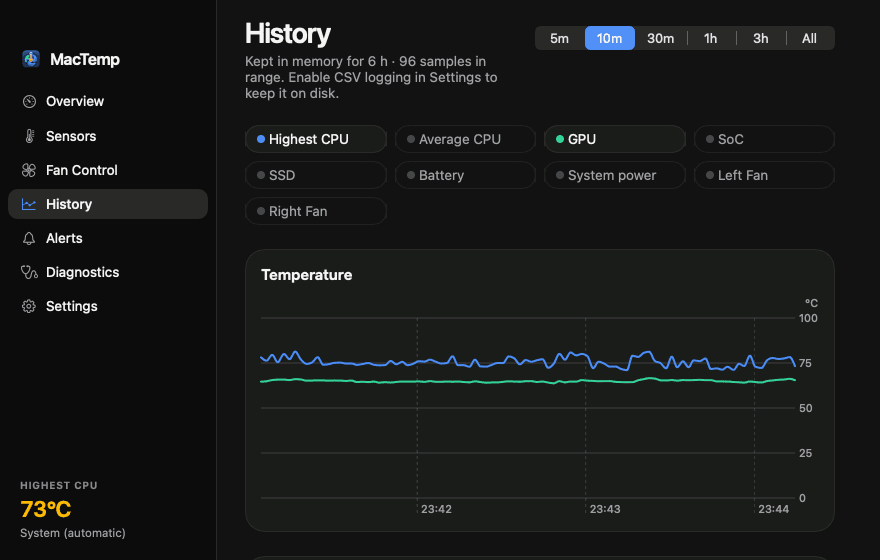
MacTemp reads around 250 sensors on a MacBook Pro with M1 Pro and groups them by sensor family (CPU performance and efficiency areas, best effort), GPU, SoC, memory, storage, battery, wireless and enclosure, so you can see which group is hottest at a glance. Its History page keeps up to 48 hours in memory as charts for CPU, GPU, SoC, SSD, battery, power and fans, and its alerts can tell you when a sensor passes your limit, a fan doesn’t reach its target or thermal pressure rises.
If the fans are the problem — too quiet for your taste under load, or you want them to start earlier — read Mac fan control on Apple Silicon and whether it’s safe to control your Mac’s fans. To check temperatures with built-in tools first, see how to check your Mac’s CPU temperature. All our guides are in the Mac temperature and fans category, and the app itself is on the MacTemp Mac temperature monitor page.
Sources
- Apple Support, “Keep your Mac laptop within acceptable operating temperatures”: support.apple.com/en-us/102336
- Apple Support, “About Power Modes on your Mac” (Low Power Mode, High Power Mode): support.apple.com/en-us/101613
- Apple, “Batteries — Maximizing Battery Life and Lifespan”: apple.com/batteries/maximizing-performance
- Apple, MacBook Air (fanless design): apple.com/macbook-air
- Apple Activity Monitor User Guide, “View CPU activity in Activity Monitor on Mac”: support.apple.com/guide/activity-monitor/actmntr43452/mac
- MacTemp: temperature and fan monitor for Mac (sensors, history, alerts)
More on this topic: Temperature & fans guides · MacTemp
 Temperature & fans