MacTemp vs Macs Fan Control: which Mac fan app fits you?
MacTemp vs Macs Fan Control on fan modes, safety limits, sensors, alerts, history, Mac support and price, and when free Macs Fan Control is all you need.
By winterzxzzUpdated 5 min read
Macs Fan Control is the app many people install first when a Mac runs hot or loud: it’s a free download, it shows fan speeds and temperatures, and it lets you set a fan to a fixed speed or tie it to a sensor. MacTemp, which we make, is a temperature and fan monitor for Apple Silicon that adds history, alerts, diagnostics and more fan modes with built-in safety limits. Here’s how they compare, and when the simpler app is the better choice.
The short answer
- Choose Macs Fan Control if you want basic fan control at no cost, need it today, have an Intel Mac, want SMART temperatures for third-party drives, or also want fan control in Windows through Boot Camp on an Intel Mac.
- Choose MacTemp if you have an Apple Silicon Mac on macOS 14 or later and want history charts, alerts, diagnostics and a safety limit that overrides your fan settings.
Feature comparison
Macs Fan Control details are as listed on crystalidea.com and its Buy Pro page in October 2026. MacTemp details come from its product page. “Not documented” means the vendor’s page doesn’t mention it.
| Feature | MacTemp | Macs Fan Control |
|---|---|---|
| Price | One-time purchase | Free download; Pro license is one-time, per computer |
| Platform | macOS 14+, Apple Silicon | Intel and Apple Silicon; Windows via Boot Camp |
| Temperatures | SMC, IOHID and battery gauge; ~250 on an M1 Pro, grouped by sensor family | Temperature sensors, plus third-party HDD/SSD via S.M.A.R.T. |
| Fan speeds | Current, minimum, maximum and system target | Real-time fan speeds |
| Fan control | System, Auto Boost, Rules, Custom Curve, Manual, Maximum | Auto, or Custom: fixed RPM or sensor-based |
| Presets | No | Custom fan presets (Pro) |
| Safety limit that overrides your setting | All fans to maximum at 95 °C (default) on CPU, GPU or SoC | Not documented |
| Alerts | Notification, sound, email (SMTPS; email untested in beta) | Not documented |
| History | Charts up to 48 h; CSV logging | Not documented |
| Diagnostics | Sensors, fans, battery health, power, uptime | Not documented |
| Menu bar | Six styles; any mix of CPU, GPU, a sensor, fan RPM, power | Configurable menu bar display |
Fan control: simple and flexible vs layered and guarded
Macs Fan Control keeps it simple. Each fan is either on Auto, where macOS is in charge, or Custom, where the app holds a constant RPM you choose or scales the fan with a temperature sensor you pick — for example a CPU sensor or a third-party drive. With every fan on Auto it works as a monitor only. Pro adds saved presets so you can switch between setups for different kinds of work.
MacTemp has more modes and more guard rails. Auto Boost ramps the fans up as the Mac heats; Rules runs a fan at a set percentage when a sensor passes a threshold, optionally only on the adapter or only on battery; Custom Curve follows a temperature-to-speed curve you draw; Manual and Maximum are what they sound like. Auto Boost, Rules and Custom Curve never request less than macOS was asking for at the moment MacTemp took over. They don’t follow later increases from macOS, so a curve or rule set low can run the fans slower than macOS would under heavier load; the safety limit is the backstop. Every request is clamped to the fan’s own range, and if any CPU, GPU or SoC sensor reaches the safety limit — 95 °C by default — all fans go to maximum, even in Manual. If those sensors can’t be read or a write fails, the fans go back to macOS.
Fan control in MacTemp is optional: it stays off until you install its helper and approve it in System Settings, and without it MacTemp is a monitor. Fan writes have so far been verified on a MacBook Pro with M1 Pro. Read is it safe to control your Mac’s fans? for the details, and don’t run two fan controllers at the same time.
Monitoring, alerts and history
Macs Fan Control shows two tables — fans and temperature sensors — and puts readings in the menu bar. Its page doesn’t describe alerts, history or diagnostics, so if you want to know about heat when you aren’t looking, you’d pair it with something else.
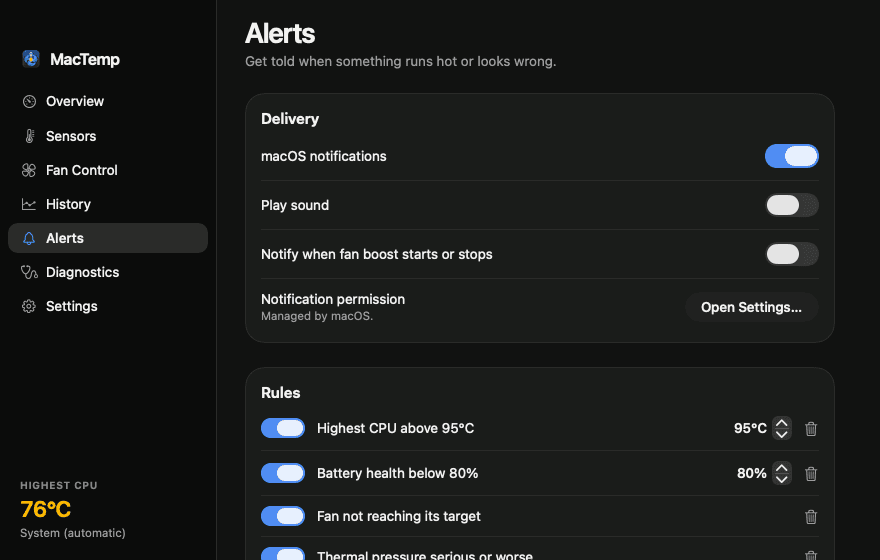
That is where MacTemp does more. It groups around 250 sensors on an M1 Pro by sensor family (CPU performance and efficiency areas, best effort), GPU, SoC, memory, storage, battery, wireless and enclosure; keeps up to 48 hours of history as charts; alerts you by notification or sound when a sensor passes your limit, battery health drops, a fan misses its target, thermal pressure rises or — where macOS records a shutdown cause — the last shutdown was abnormal; and runs diagnostics on sensors, fans and battery. It can also send alerts by email through your own mail server (SMTPS), though that hasn’t been sent in testing yet.
Mac support, maturity and price
Macs Fan Control works on Intel and Apple Silicon Macs, and with the macOS and Windows Pro license it can also control fans in Windows installed through Boot Camp on Intel Macs. CrystalIDEA has said it plans to drop support for macOS versions older than Monterey soon. The download is free; the Pro license is a one-time purchase per computer, with volume discounts, and adds custom presets and priority support.
MacTemp needs macOS 14 or later on Apple Silicon. Fan control is verified on a MacBook Pro with M1 Pro, with other Apple Silicon models expected to work but untested. It is a one-time purchase with no account and no subscription.
Who should pick which
- You want free, basic fan control right now: Macs Fan Control.
- Intel Mac, Boot Camp, or third-party drives over S.M.A.R.T.: Macs Fan Control.
- You want to be warned about heat, not just watch it: MacTemp, for alerts and history.
- You want automatic cooling with guard rails: MacTemp’s Auto Boost, Rules or Custom Curve.
For a wider view, the best Mac temperature monitor apps also covers Stats, iStat Menus and TG Pro, and MacTemp vs TG Pro compares the two specialists. The full feature list is on the MacTemp page, and more guides are in the Mac temperature and fans category.
Sources
- crystalidea.com/macs-fan-control (features, Mac support, Boot Camp, macOS support plans)
- crystalidea.com/macs-fan-control/buy (Pro license terms)
- MacTemp product page and Winter Labs FAQ (features, requirements, safety limits, availability)
More on this topic: Temperature & fans guides · MacTemp
 Temperature & fans