The best screenshot app for Mac depends on what you capture: five honest picks
The best screenshot app for Mac, by use case: macOS’s built-in tools, Shottr, CleanShot X, Snagit and MacScreenShot compared on features and price.
By winterzxzzUpdated 5 min read
There is no single best screenshot app for Mac — there’s a best one for the way you work. For occasional shots, the tools already in macOS are enough. Shottr is the pick for designers and anyone who captures long pages, CleanShot X is the most complete all-rounder, Snagit suits teams writing training material on Mac and Windows, and MacScreenShot — the app we make — covers screenshots plus polished screen recordings for a small one-time price. This guide explains how we sorted them and where each one falls short.
Quick picks
- Best free option: the built-in Screenshot app and Preview.
- Best for designers and long pages: Shottr.
- Best all-rounder with cloud sharing: CleanShot X.
- Best for cross-platform documentation teams: Snagit.
- Best for screenshots plus demo videos on a budget: MacScreenShot.
How we compared them
We looked at what each vendor documents on its own website, read in October 2026, and at our own app’s product page. We didn’t run speed benchmarks, and we haven’t tested features a site doesn’t mention, so a dash in the table means “not documented”, not “missing”. The questions that separate these apps in practice are:
- Do you need scrolling capture for long pages and chats?
- Should annotations stay editable after you save, or is a flattened image fine?
- Do you also record your screen, and does the video need voice, a webcam or zooms?
- Do you share through hosted links, or by pasting files?
- Will you pay once, pay yearly, or pay nothing?
At a glance
| App | Price model | Scrolling capture | Screen recording | Editable annotations | Requires |
|---|---|---|---|---|---|
| macOS Screenshot + Preview | Included | No | Yes, .mov | No, once saved | — |
| Shottr | Free to use; $12 license for commercial use | Yes | — | — | macOS 10.15+ |
| CleanShot X | $35 once with 1 year of updates, or $10/user/mo billed annually | Yes | MP4 or GIF, with audio and camera | Yes, project files | macOS 13.0+ |
| Snagit | Annual subscription per user | Yes | Yes, with audio and webcam | — | macOS 14+ |
| MacScreenShot | One-time purchase | No | Yes, 60 fps MP4 with a click-to-zoom editor | Yes, sidecar file | macOS 14+, Apple Silicon |
1. Built into macOS: Screenshot and Preview
Apple’s support pages document three shortcuts. Shift-Command-3 captures the whole screen; Shift-Command-4 lets you drag an area, or press Space and click a window (hold Option to drop its shadow); and Shift-Command-5 opens the Screenshot app with a timer, a save location, the floating thumbnail and a pointer toggle. Add Control to either of the first two shortcuts to copy to the clipboard instead of saving a file.
The same toolbar records the screen. Apple lists the entire screen, a selected portion and, on macOS Tahoe 26 or later, a single window, with an optional microphone, system audio on macOS 27 or later, and a circle around each click; recordings are saved as .mov files. For markup, Preview has shapes, a zoom lens, text and crop, and Live Text can copy words out of an image.
Where it falls short: no scrolling capture, no pinning, no backdrops, and no dedicated blur tool. Apple’s Preview guide warns that annotations on an image can’t be edited, moved or deleted once you save it, unless you convert the image to a PDF first. Fine for a few screenshots a week; slow for daily documentation work.
2. Shottr: best for designers and long pages
Shottr is a native app of a couple of megabytes. As listed on shottr.cc in October 2026, it supports macOS 10.15 and later and offers scrolling capture, OCR with QR reading, an on-screen ruler, a color picker with contrast checks, pixelation and object removal, pinned screenshots, a backdrop tool and upload to S3-compatible storage. You can use it for free; its purchase page lists a $12 Basic license, which is required for commercial use and covers one user on up to five computers.
Where it falls short: its site doesn’t mention screen recording, so you’ll need a separate recorder. Our MacScreenShot vs Shottr comparison goes through the two side by side.
3. CleanShot X: the most complete all-rounder
As listed on cleanshot.com in October 2026, CleanShot X covers area, window, full-screen, timed and scrolling capture with a frozen-screen option; an annotation editor with blur, pixelate, counters and spotlight that saves editable project files; on-device OCR in 30+ languages; pinning; a month of capture history; and MP4 or GIF recording with microphone, computer audio, keystrokes and a camera overlay. A video editor adds cursor-following zooms, and CleanShot Cloud provides share links with comments, passwords and expiry. Basic is $35 once with a year of updates ($19 a year to renew), Pro is $10 per user per month billed annually, and it’s also in Setapp. It needs macOS 13.0 or newer.
Where it falls short: mostly price, if you’d only use a fraction of it. We cover cheaper routes in CleanShot X alternatives, and our own app head to head in MacScreenShot vs CleanShot X.
4. Snagit: best for cross-platform documentation teams
TechSmith’s Snagit runs on both Mac and Windows. Its product page, read in October 2026, lists scrolling capture, screen recording with microphone, system audio and webcam, a step-capture mode that builds a guide as you click through a process, templates and themes, and Screencast hosting for sharing images and videos. TechSmith’s support site lists macOS Sonoma 14, Sequoia 15 and Tahoe 26.
Where it falls short: the Individual plan on TechSmith’s store is an annual subscription for one person, activated by signing in, and no one-time license was listed when we checked. That’s good value for a training team that needs the same tool on both systems, and a lot of commitment for a personal screenshot tool.
5. MacScreenShot: screenshots and demo videos in one small app
MacScreenShot is ours, so read this section with that in mind. It’s a menu-bar app for macOS 14 or later on Apple Silicon, sold as a one-time purchase, with no account or subscription. Press ⌘⇧4 and the screen freezes, windows lift out as you hover, and a click captures one even when it’s half-covered. Nine annotation tools — including numbered counters, a highlighter and redaction — save to a sidecar file, so every edit stays reversible. You also get seven gradient backdrops, OCR with Apple Vision, pin to screen, and a library with a notch panel of recent captures.
Its recorder is the other half. Clicks and pointer movement are logged next to the video, and the studio editor turns them into click-to-zoom, a smooth synthetic cursor, backdrops, timed masks and output shapes for YouTube, Reels or TikTok, exported as 60 fps MP4 as many times as you like.
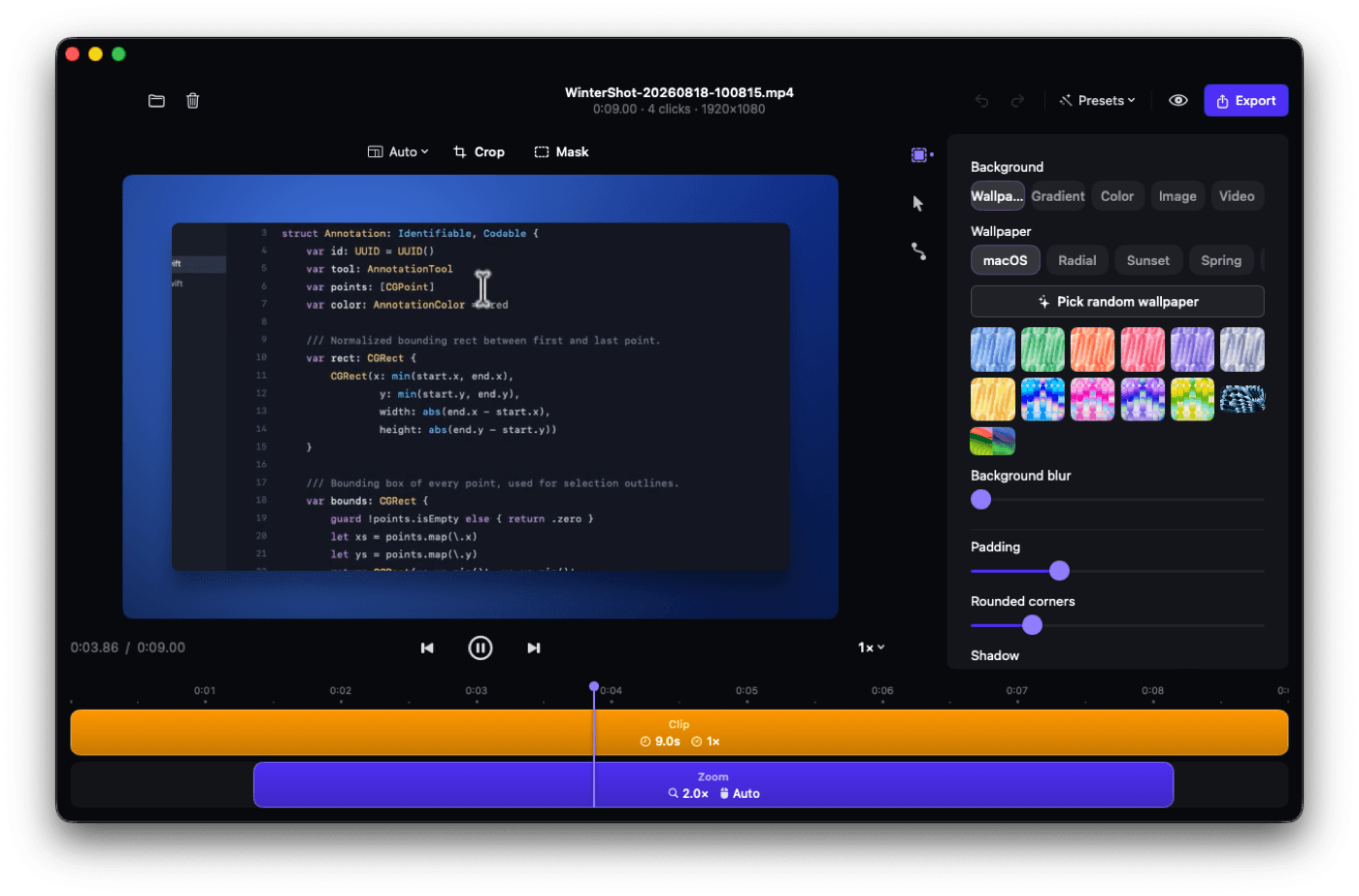
Where it falls short: no scrolling capture, no ruler or color picker, no share links, and because it asks only for Screen Recording permission, no microphone voiceover. The released build needs Apple Silicon and macOS 14 or later, and its builds aren’t notarized yet, so the first launch needs Open Anyway in Privacy & Security. More on the recorder in our Screen Studio alternative guide.
So which one should you install?
- A few screenshots a week: stay with the built-in tools.
- Long pages, pixel measuring, color checks: Shottr.
- Everything, including hosted links, GIFs and narrated video: CleanShot X.
- Step-by-step guides on Mac and Windows: Snagit.
- Editable screenshots plus silent product demos, without a subscription: MacScreenShot.
Whichever you choose, our guide to annotating and redacting a screenshot on Mac covers hiding private data safely, and the screenshot and screen recording category collects the rest.
Sources
- Apple Support: Take a screenshot on Mac
- Apple Support: How to record the screen on Mac
- Apple Support: Annotate an image in Preview on Mac
- Apple Support: Live Text in Preview on Mac
- shottr.cc
- shottr.cc/purchase.html
- cleanshot.com/features
- cleanshot.com/pricing
- techsmith.com/snagit
- techsmith.com/store/snagit
- TechSmith Support: Snagit system requirements
- MacScreenShot: screenshot app and screen recorder for Mac (features, requirements, price)
More on this topic: Screenshots & screen recording guides · MacScreenShot
 Screenshots & screen recording