Screen Studio alternatives: click-to-zoom screen recording on Mac without a subscription
Want Screen Studio-style auto-zoom without the monthly fee? How click-to-zoom editors work, and how CleanShot X and MacScreenShot compare.
By winterzxzzUpdated 7 min read
Screen Studio made a specific look popular: a product demo where the camera glides in on every click, the cursor moves smoothly instead of jittering, and the whole recording sits on a wallpaper with rounded corners and a shadow. It looks hand-edited, but you never touched a keyframe. If you like that result and not the subscription, this guide explains how these editors work, what to look for in a Screen Studio alternative, and where each option is genuinely weaker than Screen Studio.
What Screen Studio does
As listed on screen.studio in October 2026:
- Automatic zoom. It looks at what you did while recording, such as where you clicked, and zooms in on those moments. Manual zooms are available too.
- Cursor smoothing. The raw cursor path is smoothed, and you can change cursor size and style after recording, with click effects.
- Backgrounds: a macOS wallpaper, a gradient, your own image or an Unsplash photo, with shadow and inset.
- Camera and audio. Several webcam layouts including a background-removed cutout and face tracking, microphone and system audio, and optional on-device noise reduction.
- Export to MP4 at 720p, 1080p or 4K up to 60 fps, or GIF up to 1080p, in 16:9, 1:1 or 9:16.
- Sharing: browser-playable share links, shared projects and optional cloud transcription.
- It’s made for Mac only, can record an iPhone or iPad over USB, and recommends macOS Ventura 13.1 or later.
Pricing: $9 per month billed yearly or $29 month to month, with 40% off for students and educators. The site says one-time licenses are no longer sold to new customers.
That’s a lot of capability, and for people who publish video every week it may well pay for itself. If you record a demo now and then — a pull-request walkthrough, a bug report, a product clip for a launch — a subscription is harder to justify.
How click-to-zoom editors work
The trick behind every tool in this category is the same: the recorder does not burn the pointer into the video. Instead it logs, next to the raw footage, where the pointer was and when you clicked. The editor then uses that log to do two things:
- Drive a virtual camera. Each click becomes a zoom target. The editor eases in on the click, holds, and eases back out, so the viewer always sees what you’re interacting with.
- Draw a synthetic cursor. Because the real pointer isn’t in the frames, the editor can draw a cleaner one along a smoothed path, at any size, with click ripples.
Because nothing is baked in, you can change zoom depth, cursor size or the backdrop after the fact and export the same take again. That is the feature to check for in any Screen Studio alternative: if the cursor and zooms are rendered into the recording at capture time, you lose the ability to fix a take without recording it again.
What to look for in a Screen Studio alternative
- Automatic zoom from clicks, with a way to adjust or remove individual zooms.
- A synthetic, smoothed cursor you can resize after recording.
- Backdrops and output shapes — 16:9 for YouTube and docs, 9:16 for Reels and TikTok, 1:1 for feeds.
- Non-destructive editing, so a take can be re-exported with a new look.
- Audio and camera, if you narrate or appear on screen. This is where alternatives differ most.
Option 1: CleanShot X’s video editor
CleanShot X is best known as a screenshot app, but as listed on cleanshot.com in October 2026 it has a video editor, separate from its recorder, with smart zooms that follow your cursor, cursor movement smoothing, cursor styling, backgrounds, motion blur and export in multiple aspect ratios. The recorder itself captures MP4 or GIF with microphone and computer audio, click highlights, keystroke display and camera recording, and CleanShot Cloud gives you share links.
Pricing on the CleanShot pricing page: $35 once for the Mac app with one year of updates (renewable at $19 a year) and 1 GB of Cloud, or $10 per user per month billed annually for CleanShot Pro. It’s also part of Setapp. If you want one app for screenshots and polished recordings with narration, this is the strongest all-rounder. We compare it with our own app in MacScreenShot vs CleanShot X.
Option 2: MacScreenShot’s studio editor
MacScreenShot is our screenshot app and screen recorder for macOS 14 or later on Apple Silicon. It is a one-time purchase, with no subscription. Its recording side is built around exactly the approach described above.
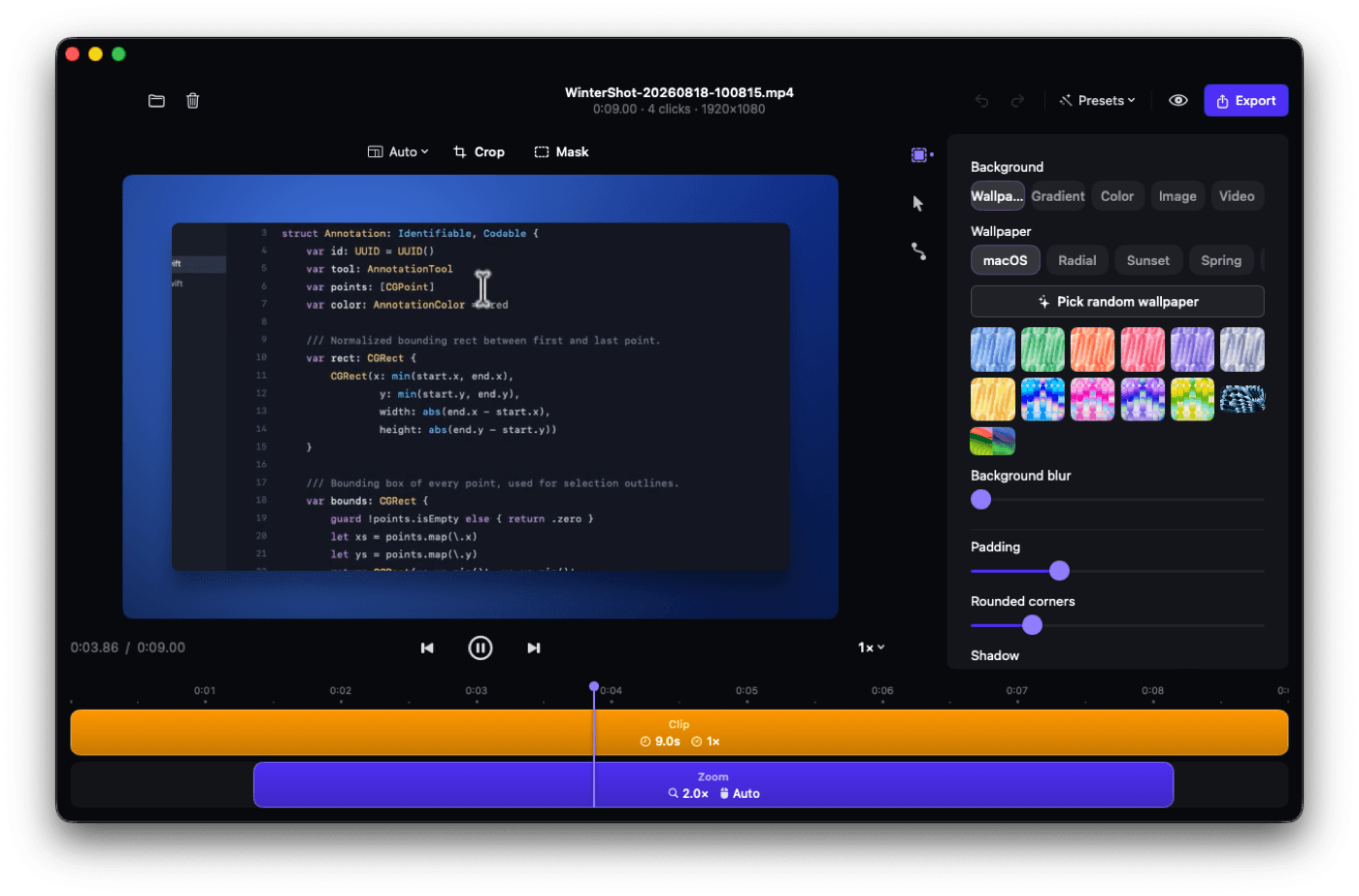
Here’s what it does, as documented in its README:
- Record a display, a window or an area, with a floating timer pill and a stop button.
- Pointer kept out of the video. Pointer motion, clicks and cursor shape are logged to a
.wsrec.jsonsidecar instead. - Auto-zoom camera that follows your clicks, with adjustable depth.
- Synthetic cursor — smoothed, resizable, with click ripples and light or dark coloring.
- Backdrops: wallpaper, gradient, solid color, custom image or looping video, with blur, padding, corner radius and shadow.
- Crop and timed masks — non-destructive crop with aspect lock, plus blur or spotlight regions that appear for a set time, handy for hiding an email address that flashes on screen.
- Output shapes including 16:9, 9:16, 1:1 and 4:5.
- Finishing: motion blur, background music with volume control, presets, undo/redo and a scrubbable timeline.
- Re-export freely. Edits live in a
.wsedit.jsonsidecar, the raw recording is never modified, and exports are 60 fps MP4.
It also does screenshots — freeze-frame capture, nine re-editable annotation tools, gradient backdrops, OCR and pinning — so it can replace two apps if you were pairing Screen Studio with a separate screenshot tool. Everything is processed on your Mac, there’s no account, and it asks for a single permission: Screen Recording.
Where it’s weaker than Screen Studio: MacScreenShot doesn’t request microphone access, so you can’t narrate while recording, and it has no webcam overlay, no GIF export, no share links and no iPhone recording. The released build is Apple Silicon only and isn’t notarized yet. If you narrate tutorials on camera, Screen Studio or CleanShot X fits better. If your demos are silent or set to music — product clips, changelog videos, bug reproductions — MacScreenShot covers the look for a fraction of the cost.
Option 3: The macOS Screenshot app
For completeness: macOS can already record your screen. According to Apple Support, press Shift-Command-5, choose Record Entire Screen or Record Selected Portion (and Record Selected Window on macOS Tahoe 26 or later), and use Options to pick a microphone, turn on Show Mouse Clicks or set a timer. Stop with the menu-bar Stop button or Command-Control-Esc. Recordings save to the desktop as .mov files. QuickTime Player’s New Screen Recording does the same job.
What you get is a faithful, unedited recording: no zooms, no cursor smoothing, no backdrop. It’s fine for a quick bug report, and it does record your voice — but it won’t give you the Screen Studio look.
Quick comparison
| Feature | Screen Studio | CleanShot X | MacScreenShot | macOS Screenshot app |
|---|---|---|---|---|
| Price | $9/mo yearly or $29/mo | $35 once (1 yr updates) or $10/user/mo | One-time purchase | Included |
| Zoom on clicks | Automatic | Smart zooms that follow the cursor | Automatic, adjustable depth | No |
| Smoothed cursor | Yes | Yes | Yes (synthetic) | No |
| Backdrops | Yes | Yes | Yes, incl. looping video | No |
| Microphone | Yes | Yes | No | Yes |
| Webcam | Yes, several layouts | Yes | No | No |
| Vertical and square output | 9:16, 1:1 | Multiple aspect ratios | 9:16, 1:1, 4:5 and more | Only by selecting that area |
| Export | MP4 up to 4K 60 fps, GIF | MP4, GIF | MP4, 60 fps | .mov |
| Share links | Yes | Yes (Cloud) | No | No |
Which should you choose?
- Screen Studio if video is a core part of your work, you appear on camera or narrate, and you want hosted links — the subscription buys the most complete toolset.
- CleanShot X if you want one paid app for screenshots and narrated, zoomed recordings with cloud sharing.
- MacScreenShot if you want the zoom-and-cursor look for silent or music-backed demos, plus a non-destructive screenshot editor, without a subscription. For annotating stills, see our guide on annotating and redacting screenshots on Mac, and our roundup of CleanShot X alternatives.
- The built-in Screenshot app if you just need a raw recording with your voice.
More guides live in the screenshots and screen recording category.
Sources
More on this topic: Screenshots & screen recording guides · MacScreenShot
 Screenshots & screen recording