MacScreenShot vs Shottr: which lightweight Mac screenshot tool fits you?
MacScreenShot vs Shottr compared on capture, annotation, OCR, measuring, screen recording, licensing and price — with the cases where Shottr wins.
By winterzxzzUpdated 5 min read
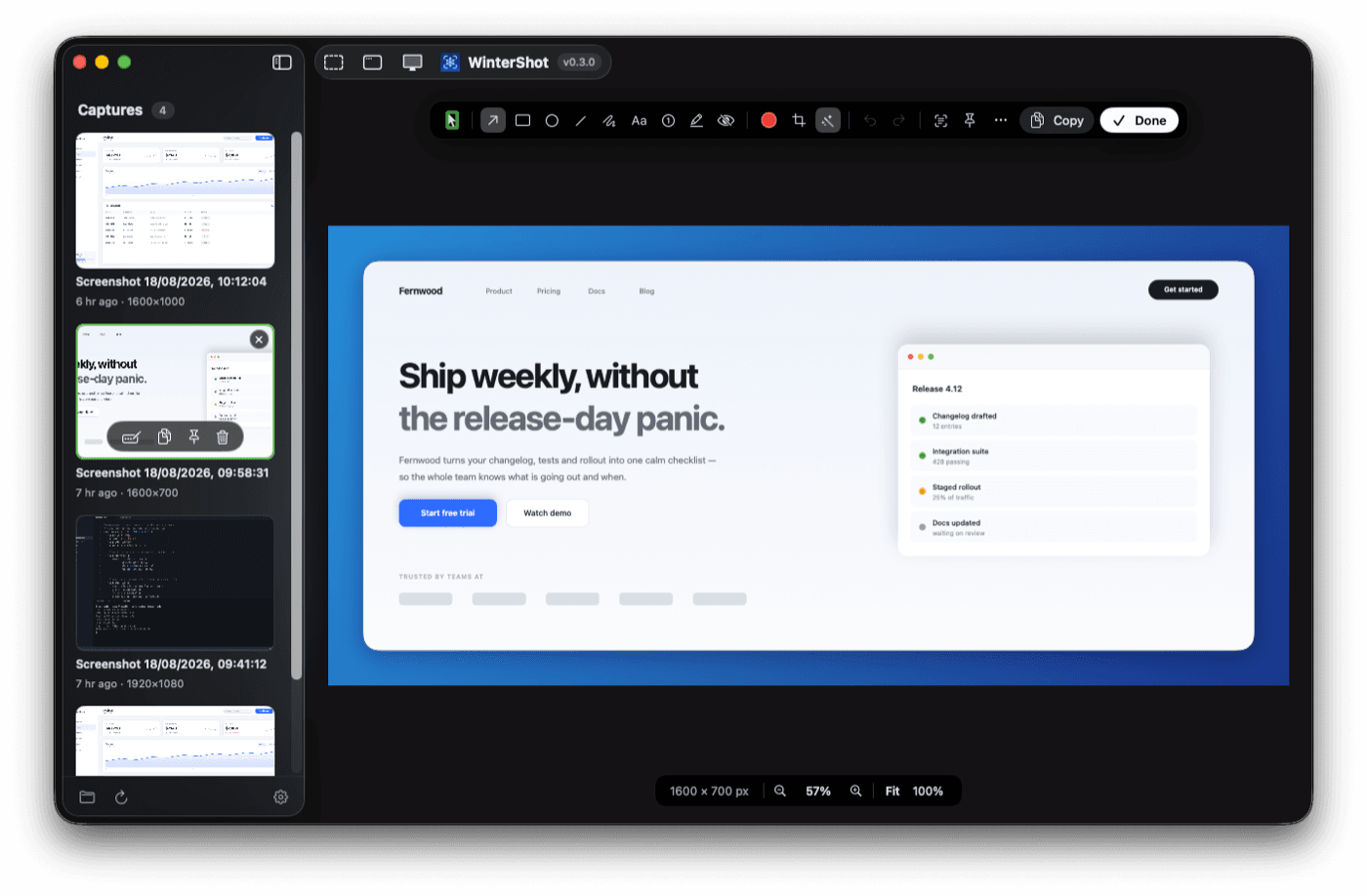
Shottr and MacScreenShot are both small, fast screenshot tools for the Mac, and both are cheap next to the big suites. They still lean in different directions. Shottr is a pixel tool: scrolling capture, an on-screen ruler, a color picker and a long list of keyboard tricks. MacScreenShot, which we make, is a capture-and-present tool: a frozen-screen window picker, annotations you can reopen and change, gradient backdrops, and a screen recorder with a click-to-zoom editor. Below is a side-by-side look, including the areas where Shottr is the stronger pick.
The short answer
- Choose Shottr if you capture long pages or chats, measure UI distances, pick colors and check contrast, upload to your own S3 bucket, or run a Mac older than macOS 14.
- Choose MacScreenShot if you also record your screen, want every arrow and crop to stay editable after you close the editor, and prefer software that needs just one permission — on an Apple Silicon Mac with macOS 14 or later.
Feature comparison
Shottr details are as listed on shottr.cc and its purchase page in October 2026 (version 1.9.3). MacScreenShot details come from its product page. A dash means the vendor’s site doesn’t document it.
| Feature | MacScreenShot | Shottr |
|---|---|---|
| Price | One-time purchase | Free to use; $12 Basic license (needed for commercial use) or $30 Friends Club |
| Platform | macOS 14+, Apple Silicon | macOS 10.15+, native for Apple Silicon |
| Capture modes | Window, area | Area, full screen, active window, any window, repeat area, 3-second delay |
| Scrolling capture | No | Yes, up and down |
| Freeze screen while selecting | Yes, with window lift-out | — |
| Annotation tools | Arrow, rectangle, ellipse, line, freehand, text, counters, highlighter, redaction | Text, freehand, highlighter, spotlight, bendable arrows, rectangles, ovals, step counter, magnifier |
| Hide private data | Redaction | Pixelate, object removal, text-only mode |
| Re-editable annotations | Yes, sidecar file next to the PNG | — |
| Backgrounds | 7 gradient presets, padding, corners, shadow | Backdrop tool with gradients, shadows, rounded corners |
| OCR | Yes, on-device with Apple Vision | Yes, plus QR codes |
| Ruler and color picker | No | Yes, with HEX, OKLCH and APCA contrast |
| Pin to screen | Yes | Yes |
| Capture history | Library window and notch panel | — |
| Screen recording | Yes, with a click-to-zoom studio editor and 60 fps MP4 export | — |
| Upload | No | S3-compatible storage (must be activated) |
| Permissions | One: Screen Recording | — |
Capture: Shottr has more ways in
Shottr’s capture menu is wider. Besides an area, it can grab the full screen, the active window or any window by hotkey, repeat the last area, and wait three seconds before shooting. Its scrolling capture works in any app and any window, scrolls in both directions, and stops at 20,000 pixels by default, a limit you can raise to 200,000. If you regularly capture long web pages, settings panes or chat threads, that alone points to Shottr.
MacScreenShot has two modes, window and area, and spends its effort on the moment of selection. Press ⌘⇧4 and the screen freezes; the window under your pointer lifts out of a dimmed desktop, so a single click captures it cleanly even when another window covers part of it. Dragging selects an area with a live size readout.
Editing: pixels vs reversible edits
Both editors cover the basics — arrows, boxes, ovals, text, freehand, a highlighter and numbered steps. Shottr adds spotlight, a magnifier, bendable arrows and an optional hand-drawn style, and its privacy tools go further: pixelation, removal of an object so it looks like it was never there, and a text-only mode that hides words without touching the rest. It can also combine several captures on one canvas and overlay images for before-and-after comparisons.
MacScreenShot’s nine tools are fewer, but nothing you do is final until you export. Annotations, crop, rotation and backdrop are stored in a .wshot.json sidecar next to the PNG, so you can reopen a capture months later and still move an arrow or undo a crop. Shottr’s site doesn’t describe a comparable project format. Both apps offer gradient backdrops with rounded corners and shadows for posts and docs. For the safe way to hide emails and tokens in either tool, see how to annotate and redact a screenshot on Mac.
Designer tools: a clear win for Shottr
Shottr was built for people who care about individual pixels. Its arrow keys measure distances on screen, with guides and a switch between logical and physical pixels on Retina displays. Tab copies the color under the pointer, other shortcuts grab text color or an average color, and it shows APCA contrast and OKLCH values. MacScreenShot has no ruler or color picker. If you check spacing and colors against a design spec, Shottr is the better tool, and it isn’t close.
Screen recording: only one of them does it
Shottr’s homepage and release notes don’t mention screen recording, so you’d pair it with a second app for video. MacScreenShot records too. The pointer and clicks are logged next to the video instead of being burned in, and the studio editor then adds click-to-zoom, a smooth synthetic cursor, backdrops, crop, timed masks, output shapes for YouTube, Reels or TikTok, motion blur and background music, exporting 60 fps MP4 as often as you like. Because MacScreenShot asks only for Screen Recording permission, it doesn’t use the microphone, so it suits silent demos rather than narrated tutorials. Our Screen Studio alternative guide covers that editor in detail.
Privacy, sharing and updates
MacScreenShot processes screenshots and recordings entirely on your Mac, needs no account and has no upload feature; you share by copying or exporting, and each new capture can go to the clipboard automatically. Shottr adds upload to any S3-compatible storage, which is handy if you run your own bucket, though Shottr says the feature has to be activated before you can use it. Its page says it checks a version file for updates and collects anonymous performance and feature-usage telemetry, which you can turn off in Preferences.
Shottr has a long track record: its release notes go back to 2020, and version 1.9.3 shipped in September 2026 with fixes for macOS 27. MacScreenShot is at version 0.12.1. Its builds aren’t notarized by Apple yet, so the first launch needs a click on Open Anyway in Privacy & Security.
Price and licensing
Shottr can be used for free, and its homepage lets you name your own price, including $0; after 30 days it starts suggesting you buy. Its purchase page lists a $12 Basic license, which its terms require for commercial use and which covers one user on up to five computers, and a $30 Friends Club tier with experimental features and better support. MacScreenShot is a one-time purchase, with no subscription and no account.
Who should pick which
- UI designers and front-end developers who measure and pick colors all day: Shottr.
- Anyone who captures long pages or conversations: Shottr, for scrolling capture.
- Anyone on macOS 13 or earlier: Shottr, which supports macOS 10.15 and up.
- Writers of docs and bug reports who revise screenshots later: MacScreenShot, for re-editable annotations and clean window capture.
- Indie makers posting product demos: MacScreenShot, since one app covers both stills and zoomed recordings.
- People who want a low one-time price and a single permission: MacScreenShot.
Still deciding? Our best screenshot app for Mac roundup puts these two next to CleanShot X and the built-in tools, and MacScreenShot vs CleanShot X covers the bigger suite. You can also see the full MacScreenShot feature list or browse every screenshot and screen recording guide.
Sources
- shottr.cc
- shottr.cc/purchase.html
- shottr.cc/kb/terms
- MacScreenShot product page (features, requirements, price)
More on this topic: Screenshots & screen recording guides · MacScreenShot
 Screenshots & screen recording