The best CleanShot X alternatives for Mac, with honest trade-offs
Looking for a CleanShot X alternative? Compare macOS’s built-in tools, Shottr and MacScreenShot on price, annotation, OCR and screen recording.
By winterzxzzUpdated 7 min read
CleanShot X is the screenshot app most Mac power users end up recommending, and for good reason: it covers capture, annotation, recording, OCR and cloud sharing in one polished package. But it isn’t the right fit for everyone. Some people only need a fraction of it, some don’t want a cloud account or an update renewal, and some want a tool whose source they can read. This guide looks at three realistic alternatives — the tools already built into macOS, Shottr, and MacScreenShot — and is upfront about where each one falls short of CleanShot X.
What CleanShot X gives you (and what it costs)
As listed on cleanshot.com in October 2026, CleanShot X captures an area, a window, the full screen, timed shots and scrolling captures (vertical and horizontal, in any app). It records MP4 or GIF with microphone and computer audio, click highlights, keystroke display and a camera overlay, and it has a separate video editor with zooms that follow your cursor, cursor smoothing, backgrounds and multiple aspect ratios. The annotation tools include blur and pixelate, numbered counters, spotlight and four arrow styles, and annotated shots can be saved as editable CleanShot project files. OCR runs on-device, reads QR codes and supports 30+ languages. Screenshots can be pinned on top of other windows, and a capture history keeps up to one month of captures.
Pricing, as listed on the CleanShot pricing page in October 2026:
- CleanShot Basic: $35, pay once — includes the Mac app, one year of updates (renewable for $19 a year) and 1 GB of Cloud storage.
- CleanShot Pro: $10 per user per month, billed annually — always-current app, unlimited Cloud storage, custom domain and branding, and team features such as SSO and SCIM.
- It’s also included in a Setapp subscription. CleanShot requires macOS 13.0 or newer.
That is a fair price for what you get. The reasons people look elsewhere are usually narrower: they want something cheaper, they don’t want a yearly update renewal, they want no cloud component at all, or they want a smaller app that covers just the essentials.
How to choose a CleanShot X alternative
Before comparing apps, decide which of these you actually use every week:
- Capture modes. Area and window capture are table stakes. Scrolling capture is not — few tools do it, so if you capture long web pages or chats, that one feature narrows your list fast.
- Annotation. Arrows, boxes, text and some way to hide private details. Check whether you can reopen a shot later and still move an arrow, or whether annotations are baked into the pixels.
- Presentation. Gradient backdrops, padding, rounded corners and shadows for social posts, docs and slides.
- Recording. Plain screen video, or a polished demo with zooms and a smoothed cursor?
- Sharing. Do you need hosted links, or is copying to the clipboard enough?
1. The built-in macOS tools
If your needs are modest, you may not need an app at all. Apple’s support pages list the shortcuts:
- Shift-Command-3 captures the entire screen.
- Shift-Command-4 lets you drag over an area; press the Space bar after it to click a window or menu instead (hold Option while clicking to leave out the window’s shadow).
- Shift-Command-5 opens the Screenshot app, with a timer, a save-location picker, a pointer toggle and screen recording of the entire screen or a selected portion — with an optional microphone and Show Mouse Clicks.
Clicking the floating thumbnail opens the shot for editing, and Preview’s Markup toolbar adds shapes, highlights, a zoom lens, text, signatures and cropping.
Where it falls short: there is no scrolling capture, no backdrop tool, no pinning, and no dedicated blur or redaction tool. Apple’s Preview guide also notes that once you save an annotated image, you can’t edit, move or delete the annotations. Recordings are plain video with no zoom editing. For a quick shot with an arrow, it’s enough; for daily documentation work, it gets tedious. Our step-by-step guide on how to annotate and redact a screenshot on Mac shows exactly how far the built-in Markup tools go.
2. Shottr
Shottr is a small, fast screenshot tool with a loyal following. As listed on shottr.cc in October 2026, it is a native app optimized for Apple Silicon, needs macOS Catalina (10.15) or later, and the download is about 2.4 MB. Its feature list includes scrolling capture for long pages or chats, OCR and QR reading, pixel measurement with the arrow keys, a color picker on the Tab key, annotations (text, freehand, highlights, spotlights), pixelation and object removal, pinned always-on-top screenshots, and backgrounds with gradients, shadows and rounded corners.
Pricing: Shottr is free to use, with occasional reminders to buy, and its homepage lets you name your own price. Its purchase page lists a $12 Basic license, which its terms require for commercial use, and a $30 Friends Club tier (as listed on shottr.cc in October 2026).
Where it falls short: Shottr’s homepage doesn’t list screen recording, so if you also record demos you’ll need a second tool. If you mostly measure UI, pick colors and grab long pages, though, Shottr is an excellent CleanShot X alternative — arguably better than CleanShot X for designers who live in the pixel ruler.
3. MacScreenShot
MacScreenShot is our app, so weigh this section accordingly — we’ve kept it to what the app actually does. It’s a menu-bar screenshot app and screen recorder for macOS 14 or later on Apple Silicon, sold as a one-time purchase, with no subscription or account.
- Frozen-screen selector. Press ⌘⇧4 (re-recordable) and the screen freezes. Windows lift out of a dimmed backdrop as you hover, so one click captures a window even when it’s half-covered; drag for an area with a live size readout.
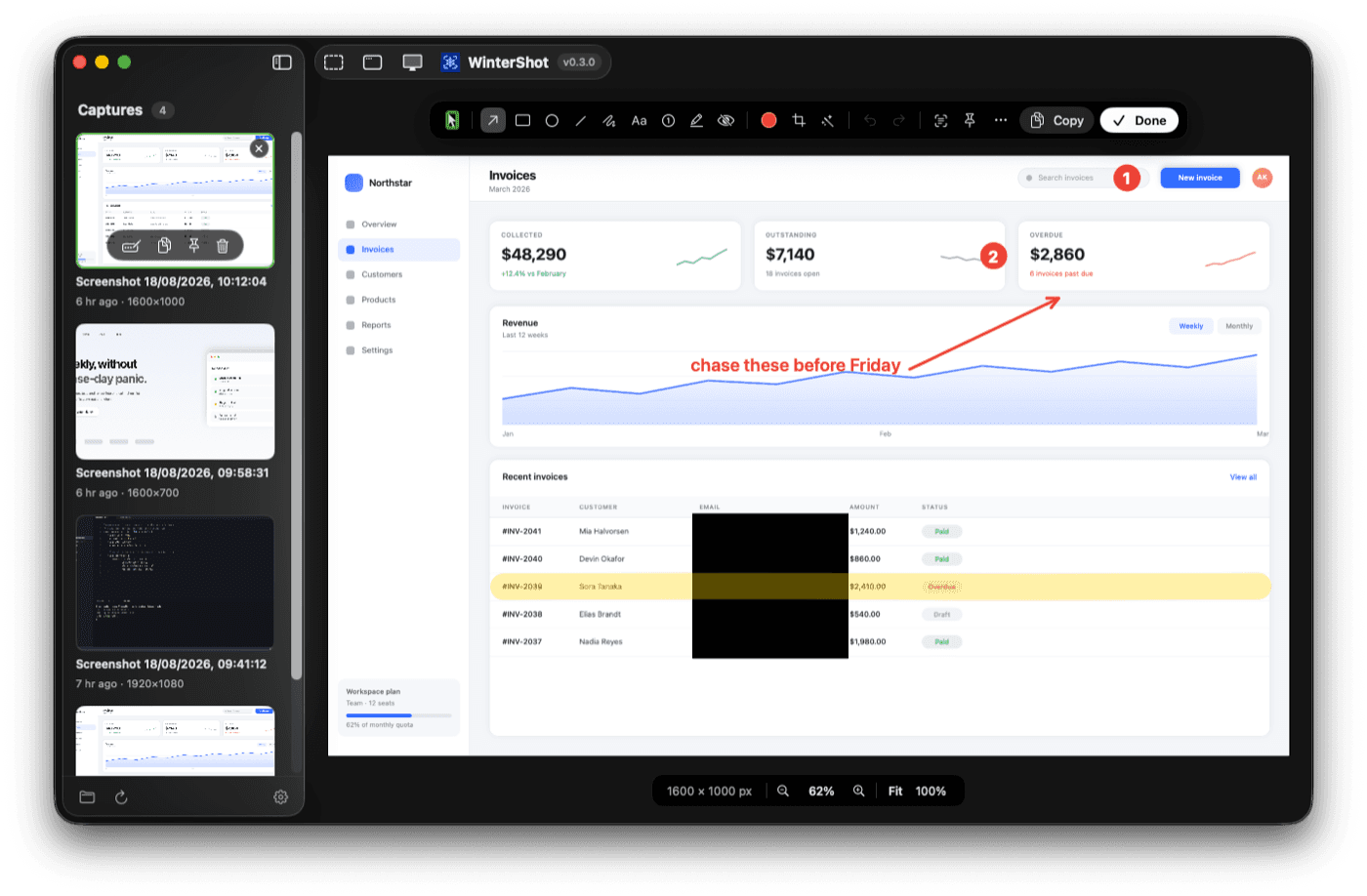
- Nine annotation tools: arrow, rectangle, ellipse, line, freehand, text, numbered counters, highlighter and redaction, with undo/redo and drag-to-move.
- Non-destructive edits. Annotations, crop, rotation and backdrop are stored in a
.wshot.jsonsidecar next to the PNG, so every arrow stays editable months later. Pixels are flattened only on export. - Background beautify with seven gradient presets, padding, rounded corners and shadow.
- On-device OCR with Apple Vision, pin to screen, and a capture library plus a notch panel with your latest captures.
- Screen recording with a studio editor: click-to-zoom, a smoothed synthetic cursor, backdrops, crop, timed masks, output shapes for YouTube, Reels or TikTok, motion blur and background music, exported as 60 fps MP4 as many times as you like. Our Screen Studio alternative guide covers that editor in depth.
- One permission (Screen Recording), no account, everything processed on your Mac.
Where it falls short: MacScreenShot has no scrolling capture, no GIF export, no cloud sharing links, no webcam overlay, and it doesn’t ask for microphone access, so recordings carry no voiceover. The released build is Apple Silicon only, and builds aren’t notarized yet, so the first launch needs a trip to Open Anyway in Privacy & Security. If any of those matter to you, CleanShot X or Shottr is the better choice.
Side-by-side summary
| Feature | CleanShot X | macOS built-in | Shottr | MacScreenShot |
|---|---|---|---|---|
| Price | $35 once (1 yr updates) or $10/user/mo | Included | Free to use; $12 license for commercial use | One-time purchase |
| Scrolling capture | Yes | No | Yes | No |
| Freeze screen while selecting | Yes | No | Not listed | Yes |
| Annotations editable later | Yes (project files) | No (on saved images) | Not listed | Yes (sidecar file) |
| Blur / pixelate / redact | Blur and pixelate | No dedicated tool | Pixelate and remove | Redaction |
| Backdrops | Yes | No | Yes | Yes |
| On-device OCR | Yes, 30+ languages, QR | Not in the Screenshot app | Yes, QR | Yes (Apple Vision) |
| Screen recording | MP4 and GIF | Yes (.mov) | Not listed | MP4, 60 fps |
| Zoom-and-cursor video editor | Yes | No | No | Yes |
| Cloud sharing links | Yes | No | Upload (licensed) | No |
| macOS requirement | 13.0+ | — | 10.15+ | 14+, Apple Silicon |
“Not listed” means the vendor’s homepage didn’t mention the feature when we checked; it doesn’t prove the app lacks it.
Which one should you pick?
- Stay with CleanShot X if you rely on scrolling capture, GIFs, webcam or keystroke overlays, or hosted share links for a team. Nothing here replaces all of that at once.
- Use the built-in tools if you take a few screenshots a week and an arrow or a crop is all you add.
- Pick Shottr if you want scrolling capture, pixel measuring and a color picker in a tiny download, and don’t need to record video.
- Pick MacScreenShot if you want re-editable annotations, backdrops, OCR and a click-to-zoom recording editor in one inexpensive app, and you’re on an Apple Silicon Mac with macOS 14 or later.
For a feature-by-feature look at the two all-rounders, read MacScreenShot vs CleanShot X, or browse every screenshot and screen recording guide.
Sources
More on this topic: Screenshots & screen recording guides · MacScreenShot
 Screenshots & screen recording