The MacBook notch: fix hidden menu bar icons, hide it, or put it to work
Menu bar icons hidden behind the MacBook notch? How macOS handles the notch, how to get your icons back, hide the notch, or make it useful.
By winterzxzzUpdated 7 min read
The notch is the black cut-out at the top center of the screen on the MacBook Air with Liquid Retina display and the MacBook Pro with Liquid Retina XDR display. Apple calls it the camera housing: it holds the FaceTime camera, and macOS draws the menu bar on either side of it. Most of the time you stop noticing it. The moments you do notice it tend to be one of three: a menu bar icon you need has vanished, the shape bothers you, or you wonder why that space can’t do something useful.
This guide takes those in order, using only what macOS and the named tools document.
Quick reference
| Problem | Fix | Cost |
|---|---|---|
| Too many menu bar icons, some hidden | Command-drag the ones you don’t need out of the menu bar | Built into macOS |
| You need all your icons | A menu bar manager such as Ice or Bartender | Ice is free; Bartender is paid |
| An app’s menus are cut off by the notch | “Scale to fit below built-in camera” in the app’s Get Info window | Built into macOS |
| You want the notch to disappear visually | TopNotch | Free |
| You want the notch to be useful | A notch app such as MacNotch | MacNotch is a one-time purchase |
Why menu bar icons disappear behind the notch
The macOS menu bar has two halves. On the left are the menus of the app you are using (File, Edit, View and so on). On the right are status menus: Wi-Fi, battery, Control Center, the clock, and the icons that third-party apps add. On a notched MacBook, the notch sits between the two halves and takes up space neither side can use.
When the right side runs out of room, macOS only shows what fits. The rest don’t wrap to a second row or move somewhere else; Apple’s support document describes these items as “blocked or hidden behind the camera housing.” The app is still running, but its icon is out of reach. The same squeeze can hit the left side when an app has many menus with long names.
There are four ways to deal with it, from the simplest to the most thorough.
1. Remove the icons you don’t need
Hold Command and drag an icon out of the menu bar to remove it. Apple’s Mac User Guide describes this as the quick way to remove a status menu. Start with the icons you never click: every one you remove frees room for one you need.
You can also choose which items appear in the menu bar from Menu Bar settings in System Settings. For third-party apps, check the app’s own preferences too: many have an option to hide their menu bar icon entirely.
2. Rearrange what is left
Hold Command and drag an icon sideways to move it. Group the icons you rely on together so it is obvious at a glance when one has gone missing.
3. Use a menu bar manager
If you genuinely need more icons than fit, a menu bar manager hides the less important ones behind a toggle and brings them back when you ask. Two well-known options, as listed on their official pages in October 2026:
Ice (free, open source)
Ice is a menu bar manager released under GPL-3.0 on GitHub. It needs macOS 14 or later. It can hide items, keep some always hidden, show hidden items on hover, on a click in an empty area of the menu bar or with a scroll or swipe, and re-hide them automatically. Its README recommends the separate “Ice Bar” for MacBooks with a notch: hidden items appear in their own bar instead of trying to squeeze into the menu bar. Install it from its releases or with Homebrew (brew install --cask jordanbaird-ice). The README notes it is in active development and some features are not finished yet.
Bartender (paid)
Bartender’s site says it can automatically hide the items the notch would cover and bring them back with a click or a hotkey, or show them in its own Bartender Bar. It sells Bartender 7 as a one-time purchase and Bartender Pro as a yearly plan, with a four-week trial of the main download. Its site says Bartender 7 is built for macOS 27 and that Tahoe users should use Bartender 6 for now, so check which version matches your Mac.
4. Fix an app whose menus are cut off
If it is the app’s own menus on the left side that disappear behind the notch, macOS has a compatibility setting for exactly this. Apple’s steps:
- Quit the app.
- Click the Finder icon in the Dock, then click Applications in the Finder sidebar.
- Select the app, then choose File → Get Info, or press Command-I.
- In the Info window, select “Scale to fit below built-in camera.”
With it on, the app’s menu bar and windows appear below the camera. There are two caveats from Apple: while that app is open, other open apps (or apps in the same space) also appear below the camera until you quit it; and once the developer updates the app for notched Macs, the option no longer appears.
How to hide the MacBook notch
You cannot remove the camera housing, but you can make it blend in. The simplest way is a wallpaper whose top edge is black, so the menu bar area and the notch merge into one band.
TopNotch does this for you. It is a free app from MTW, the team behind CleanShot, and its site says it “makes the notch disappear”, works with macOS Dynamic Desktop wallpapers, across multiple displays and spaces, and can round the corners of your wallpaper. It requires macOS 11 or newer.
If you would rather see less of the menu bar altogether, macOS can hide it automatically so it only shows when you move the pointer to the top of the screen. That leaves the notch on its own against your wallpaper or app.
How to put the MacBook notch to work
The other approach is the opposite of hiding: make the notch the most useful spot on the screen. Notch apps draw a black island around the camera housing that expands into a panel, the way the Dynamic Island works on the iPhone. Our guide to getting a Dynamic Island on a Mac explains the idea in detail, including what happens on Macs and monitors without a notch.
MacNotch is our take on it. On a notched MacBook, the island fuses with the hardware notch and opens with a click (or on hover, if you turn that on) without taking focus from the app you are typing in. Inside it you get:
- Now Playing for Spotify, Apple Music and YouTube in the browser, with playback controls.
- Notifications that slide out of the notch, with a history.
- A volume and brightness HUD in place of the default one.
- Your next calendar event with a countdown, up to three timers, a Pomodoro and a stopwatch.
- A Dashboard with day progress, pinned apps and Caffeine, and Quick Toggles for Wi-Fi, Dark Mode and the mic.
- System stats, Notes, To-do from Reminders and a Clipboard history you can turn on.
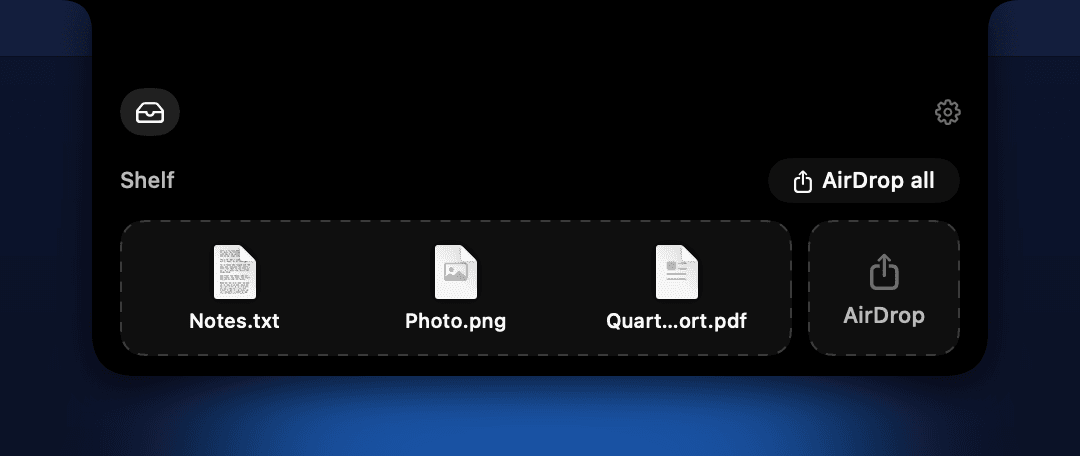
- A file shelf for parking files you are about to drag somewhere else, or AirDrop.
- Alerts when the microphone or camera is in use, plus battery, Low Power Mode, Focus and internet changes — each one can be turned off.
The microphone and camera alerts pair well with what macOS already does: Apple’s guide notes that a green dot next to Control Center indicates a camera is in use. MacNotch puts that signal in the notch, right where the camera is.
Before you buy, two honest notes. MacNotch needs macOS 15 or later, and version 1.1.0 is not notarized yet, so the first time you open it you have to click Open Anyway in System Settings → Privacy & Security. If those are deal-breakers, our comparison of NotchNook alternatives covers apps that run on macOS 14, and MacNotch vs Boring Notch looks at the free, open-source option side by side.
Does a notch app fix hidden menu bar icons?
No. A notch app changes what the notch shows, not how many status menus fit beside it. Treat the two as separate jobs: tidy the menu bar with the steps above, then decide whether you want the notch itself to do something.
Summary
- Missing icons: remove or rearrange with Command-drag, or use Ice or Bartender.
- Cut-off app menus: “Scale to fit below built-in camera” in Get Info.
- Want it gone: a black-topped wallpaper or TopNotch.
- Want it useful: a notch app like MacNotch.
For more, browse the Notch & Dynamic Island guides.
Sources
- Apple Support, “How to adjust an app’s settings to appear below the camera area on your MacBook Air or MacBook Pro”: support.apple.com/en-us/102125
- Apple Mac User Guide, the menu bar: support.apple.com/guide/mac-help/the-menu-bar-mchlp1446/mac
- Ice repository and README: github.com/jordanbaird/Ice
- Bartender official site: macbartender.com
- TopNotch official site: topnotch.app
More on this topic: Notch & Dynamic Island guides · MacNotch
 Notch & Dynamic Island