How to get a Dynamic Island on your Mac (with or without a notch)
Want the iPhone’s Dynamic Island on your Mac? What it is, which Macs have a notch, how it works on external displays and how to set it up step by step.
By winterzxzzUpdated 5 min read
On the iPhone, the Dynamic Island is the black, pill-shaped area around the front camera that grows to show music, timers, calls and other live activity. A MacBook has its own black shape at the top of the screen — the notch — and on the Mac, giving it the same job is the work of third-party apps. This guide explains what a Mac “Dynamic Island” actually is, which Macs it suits, what happens on an external display, and how to set one up in a few minutes.
What a Dynamic Island on a Mac means
Apple introduced the Dynamic Island with the iPhone 14 Pro in 2022. The idea is simple: rather than treating the camera cut-out as wasted space, the system draws a black shape around it and uses that shape as a live, expandable status area.
On a Mac, a Dynamic Island app does the same around the notch. In practice that means:
- a compact state that sits around the notch and shows something small, such as album artwork;
- an expanded panel that opens on hover, a click, a gesture or a shortcut, with controls and detail;
- short alerts that slide out of the notch when something happens, then tuck back in.
Because the island is black and the notch is black, a well-made island looks like the notch itself is growing. That is the whole trick, and it is why these apps feel natural on a MacBook.
Does your Mac have a notch?
Look at the top center of your built-in screen. If the menu bar is split by a black camera housing, your Mac has a notch. Apple’s own support documents describe these as the MacBook Air with Liquid Retina display and the MacBook Pro with Liquid Retina XDR display, and refer to the notch as the “camera housing”.
If you are using a desktop Mac, an older MacBook, or an external monitor, there is no notch. That does not rule out a Dynamic Island; it changes how the app has to draw it.
Dynamic Island on a Mac without a notch, or on an external display
Some notch apps only make sense on a notched MacBook. Others draw an island at the top of any screen. MacNotch does the second. On a MacBook the island fuses with the hardware notch, and an external display copies that notch: same shape, size and animation, so the island looks the same wherever you glance. Set the island height to Match menu bar and each display’s island fills its own menu bar. A Mac that has never had a notch, such as an iMac or Mac mini, gets a floating Dynamic Island at the top of the screen. You can leave it on Auto or pick Notch or Dynamic Island for every screen.
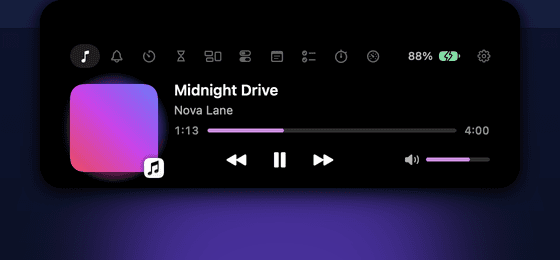
If you are comparing apps, this is worth checking first. Among the notch apps we looked at in October 2026, NotchNook’s site says it works without a notch through a slim handle at the top of the screen, while Boring Notch’s README and Alcove’s site do not document it. Our roundup of NotchNook alternatives has the full comparison.
What you need before you start
- macOS 15 or later. MacNotch needs it. If you are on macOS 14, see the roundup above for apps that still support it.
- Any Mac. A notch is optional.
- Paid once. MacNotch is a one-time purchase with no subscription and no account needed to use it.
How to set up a Dynamic Island on your Mac with MacNotch
- Check your macOS version. Choose Apple menu → About This Mac and confirm you are on macOS 15 or later. MacNotch does not run on older versions.
- Buy and download MacNotch. Buy MacNotch on its product page (a one-time purchase), then download the zip from your account page or the link in your receipt email.
- Move it to Applications. Open the download and drag MacNotch.app into your Applications folder.
- Open it the first time. The build is not notarized yet, so open MacNotch once, then click Open Anyway in System Settings → Privacy & Security and confirm with Open. Or run: xattr -dr com.apple.quarantine /Applications/MacNotch.app
- Choose Notch, Dynamic Island or Auto. Auto fuses the island with the hardware notch on a MacBook, copies that notch onto external displays, and floats a Dynamic Island on a Mac that has never had a notch. Pick Notch or Dynamic Island to use one style on every screen.
- Learn the gestures and shortcut. Click the island to open it, or turn on opening on hover. Swipe down with two fingers to open, up to close, and left or right to skip tracks or turn pages, or set a global shortcut.
- Turn off the alerts you don't want. Mic and camera, battery, Low Power Mode, Focus, internet and screen-unlock alerts are each opt-out, so switch off any you find noisy.
About step 4: macOS warns you because MacNotch 1.1.0 has not been through Apple’s notarization yet. The Open Anyway button tells macOS you trust this one app; the xattr command does the same from Terminal by removing the quarantine flag that macOS adds to downloaded files. You only need to do it once. Download MacNotch only from the official MacNotch Dynamic Island app page.
What your new Dynamic Island can do
Now Playing
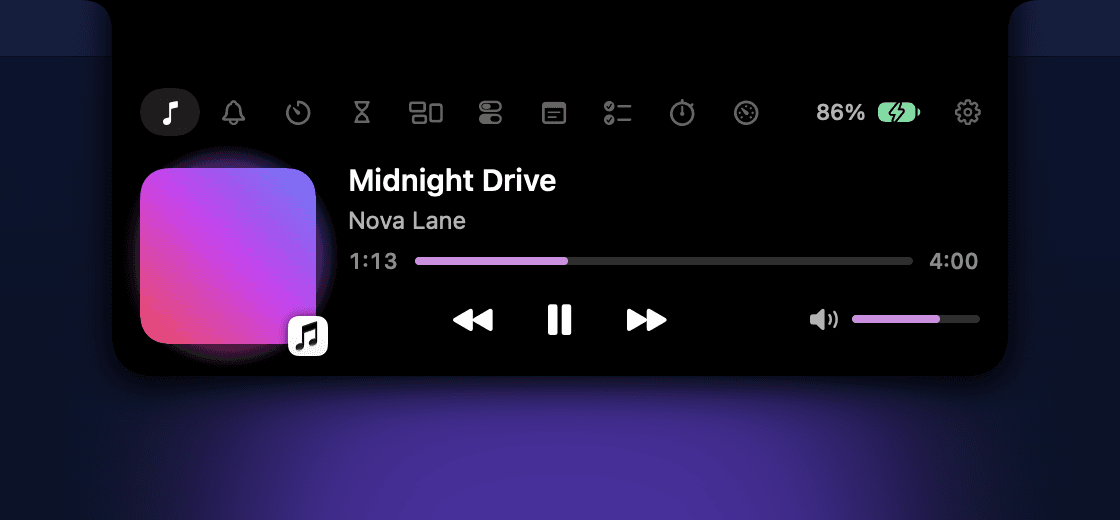
Play something in Spotify, Apple Music or YouTube in the browser and the compact island shows the artwork and a waveform. Open it for the title, progress, playback controls and an output-volume slider.
Notifications
New notifications slide out of the notch. Click one to open its app; they auto-hide, queue up when several arrive at once, and are kept in a history.
Volume and brightness
When you change volume or brightness, the island shows it instead of the default macOS HUD, along with the current output device. You can have it expand downward or sideways. Brightness works without granting the Accessibility permission.
Your day at a glance
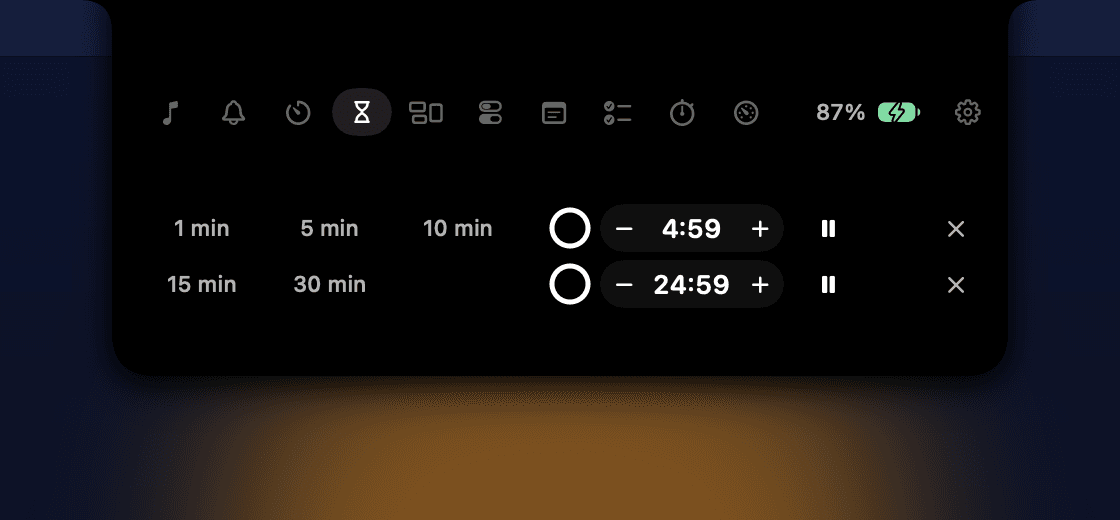
A Today page shows your next calendar event with a countdown to it, and meetings drop out of the notch with Join and Snooze. There are quick timers (up to three at once), a Pomodoro timer and a stopwatch with laps, and each keeps counting in the compact island when the panel is closed.
Live alerts
The island tells you when the microphone or camera is in use, and flags battery and charging changes, Low Power Mode, Focus changes, losing or regaining the internet, and screen unlock, plus Caps Lock.
More pages in the panel
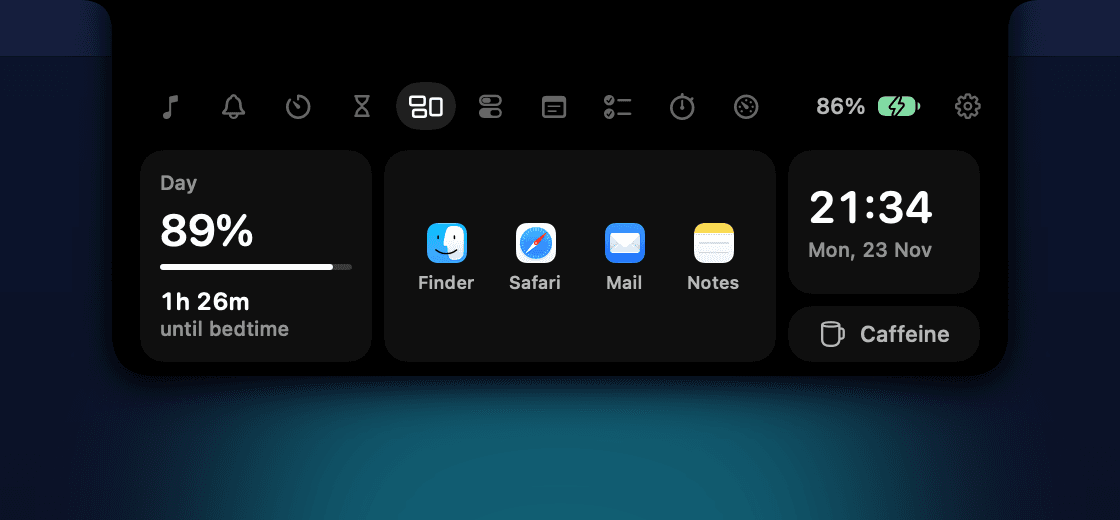
A tab bar across the top of the panel switches between pages, and you can turn off any you don’t need: a Dashboard with day progress, pinned apps and Caffeine to keep the Mac awake; Quick Toggles for Wi-Fi, Dark Mode, the microphone, volume, a screenshot and the lock screen; System stats for CPU, memory, network and disk; Notes; To-do from your Reminders; a Clipboard history that stays off until you turn it on; a file shelf that can AirDrop what you park on it; and an AirPods battery page.
Small details that matter day to day
- It does not steal focus. Opening the island leaves keyboard focus in the app you are typing in.
- It gets out of the way. The island hides itself under full-screen apps and can be kept out of your screenshots.
- It stays on your Mac. MacNotch has no network access and no analytics.
- Languages. The app is in English and Vietnamese.
Troubleshooting
macOS won’t open MacNotch
That is the notarization warning from step 4. Click Open Anyway in System Settings → Privacy & Security, or run xattr -dr com.apple.quarantine /Applications/MacNotch.app in Terminal, then open it normally.
The island disappeared
If you are in a full-screen app, that is by design: MacNotch hides under full-screen apps. Leave full screen and it comes back.
My menu bar icons are hidden behind the notch
That is a macOS menu bar limitation rather than something a Dynamic Island app changes. Our guide to what to do with the MacBook notch walks through the fixes.
Is MacNotch the right Dynamic Island for you?
If you want notifications, timers, Now Playing and a panel of everyday pages in the notch, on macOS 15 or later, for a one-time purchase, yes. If you need macOS 14 support or a camera mirror, Boring Notch may suit you better; we compare the two directly in MacNotch vs Boring Notch. More guides live in the Notch & Dynamic Island category.
Sources
- Apple Support, “How to adjust an app’s settings to appear below the camera area on your MacBook Air or MacBook Pro”: support.apple.com/en-us/102125
- NotchNook official site: getnotchnook.com
- Boring Notch README: github.com/TheBoredTeam/boring.notch
- Alcove official site: tryalcove.com
More on this topic: Notch & Dynamic Island guides · MacNotch
 Notch & Dynamic Island