A better volume and brightness HUD on a Mac: built-in options and the notch
Change volume and brightness on a Mac with more control: key tricks, Control Center sliders, menu bar items, and a notch HUD that replaces the overlay.
By winterzxzzUpdated 4 min read
Every time you press a volume or brightness key on a Mac, macOS shows a small overlay with the new level. It does the job, but the Apple pages we checked describe no way to move it or change what it shows. If you want more control, macOS has a few built-in tricks, and a notch app such as ours can show the level in the notch instead. This guide covers both, using Apple’s Mac User Guide as of October 2026, and shows how MacNotch, the notch app we make, handles it.
Built-in ways to control volume and brightness
The keys
On a MacBook or a Magic Keyboard, the top row has keys for brightness and volume, and each tap changes the level by one notch. Two modifier tricks help:
- Add Option to a brightness key and Display settings opens; add it to a volume key and you land in Sound settings.
- If your top row is set to act as standard function keys, hold Fn to use the brightness and volume functions instead.
Sliders in Control Center
No media keys, or want something between two steps? Control Center has sliders for both, and they work with any keyboard. In the Sound control you can also mute by clicking the level.
Sound and Display in the menu bar
If you change volume or output device often, put the Sound control in the menu bar: choose Apple menu → System Settings → Menu Bar, find Sound under Menu Bar Controls, and choose Always Show or Show When Active. Display works the same way. Choosing an output device is also available in System Settings → Sound.
What the built-in overlay doesn’t do
- In the Apple pages we checked, there’s no setting for where it appears or how it looks.
- Switching the output device happens in Control Center or Sound settings, not from the overlay.
- On a MacBook, the notch, right at the top of your view, stays dark while the overlay appears elsewhere.
A volume and brightness HUD in the notch with MacNotch
MacNotch turns the notch into a Dynamic Island, and one of the things it shows there is a volume and brightness HUD. When you press the keys, the level, and your current output device, appear in the island instead of the default HUD. You choose whether it expands downward or sideways out of the notch.
- Brightness without extra permissions. The brightness HUD works without granting MacNotch the Accessibility permission.
- One place for audio. The Now Playing page in the same island has an output-volume slider next to the playback controls, and the Quick Toggles page has a volume slider beside the Wi-Fi, Dark Mode and microphone switches.
- No notch, no problem. External displays copy the MacBook’s notch, and a Mac without one gets a floating Dynamic Island at the top of the screen; the HUD shows there too.
- Stays out of the way. The island hides under full-screen apps and opens without taking focus from the app you’re typing in.
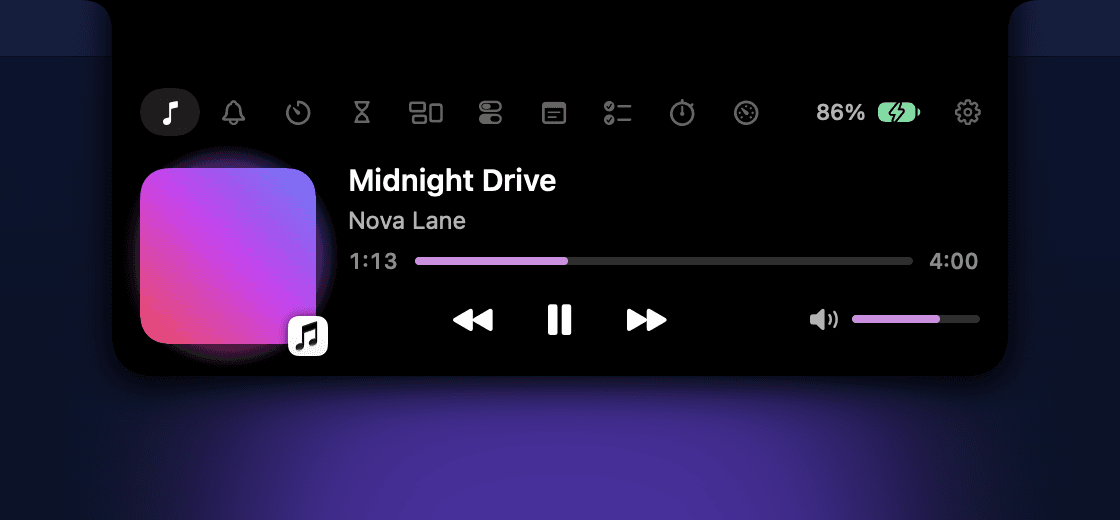
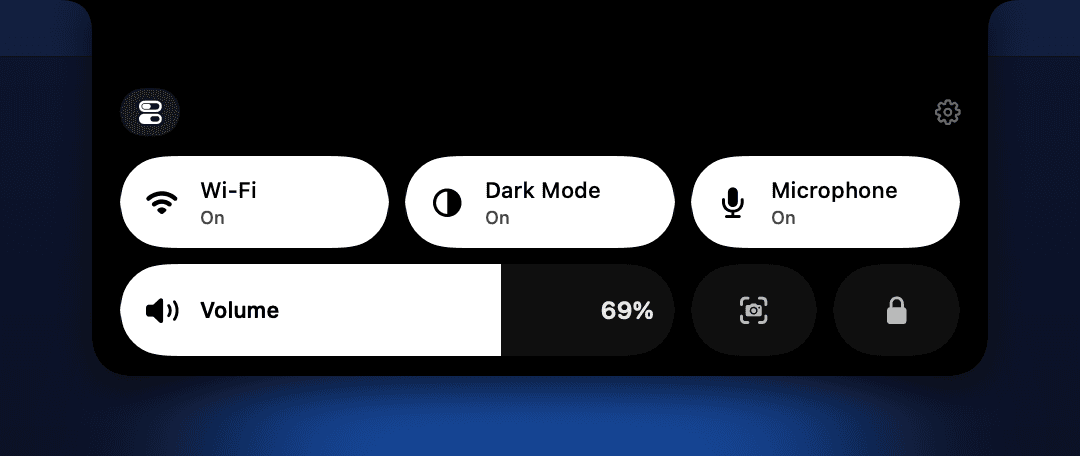
Beyond the HUD, MacNotch shows notifications, calendar and reminders, a Dashboard, timers, a Pomodoro and a stopwatch, System stats, Notes, an opt-in Clipboard history, a file shelf with AirDrop, and alerts for the mic, camera, battery and Focus. It makes no network requests and has no analytics. It needs macOS 15 or later; the build isn’t notarized yet, so the first time you open it, click Open Anyway in System Settings → Privacy & Security.
To see what else fits in the notch, read what to do with the MacBook notch or Now Playing in the notch. To compare apps, see the best notch apps for MacBook. All our notch guides are in the Notch & Dynamic Island category, and the feature list is on the MacNotch page.
Sources
- Apple Mac User Guide, “Adjust brightness and volume on your Mac”: support.apple.com/guide/mac-help/mchlgtd_bright01/mac
- Apple Mac User Guide, “Change Menu Bar settings on Mac”: support.apple.com/guide/mac-help/mchlad96d366/mac
- MacNotch product page (HUD, Now Playing, requirements)
More on this topic: Notch & Dynamic Island guides · MacNotch
 Notch & Dynamic Island