Now Playing on a Mac: menu bar controls, or music in the notch
Put the Now Playing control in your Mac menu bar, then go further: show artwork, progress and playback controls for Spotify and Apple Music in the notch.
By winterzxzzUpdated 4 min read
macOS already has a Now Playing control, and you can show it in the menu bar so play, pause and skip are one click away from any app. What macOS doesn’t do is put the music in the notch the way an iPhone’s Dynamic Island does. For that you need a notch app. This guide sets up the built-in control first, using Apple’s Mac User Guide as of October 2026, then shows what Now Playing looks like in the notch with MacNotch, the Dynamic Island app we make.
Put Now Playing in the menu bar
- Choose Apple menu → System Settings, then click Menu Bar in the sidebar.
- Under Menu Bar Controls, find Now Playing and turn it on so it shows in the menu bar.
- Use its pop-up menu to choose Show When Active, so the icon only appears while something is playing, or Always Show.
If Now Playing is in your Control Center, you can also Control-click it there and choose Copy to Menu Bar or Add to Menu Bar.
What the built-in control is missing
- It’s one more click. The menu bar shows a status icon; to see the track or skip it you open a menu.
- It competes for space. On a MacBook with a notch, the right side of the menu bar is the most crowded part of the screen, and status icons that don’t fit can end up hidden behind the camera housing.
- The space in the middle goes unused. The notch itself, right where your eyes land, shows nothing.
If those bother you, consider moving Now Playing into the notch instead. Several apps do this; see our roundup of the best notch apps for MacBook for the options. Here’s how it works in ours.
Now Playing in the notch with MacNotch
MacNotch turns the notch into a Dynamic Island. When music plays, the compact island shows the album artwork at one end and a waveform at the other, with nothing under the camera, so you can tell at a glance that something is playing. Click it (or hover, if you turn that on) and the island expands to the title, a progress bar, playback controls and a slider for output volume. It works with Spotify, Apple Music and YouTube in the browser.

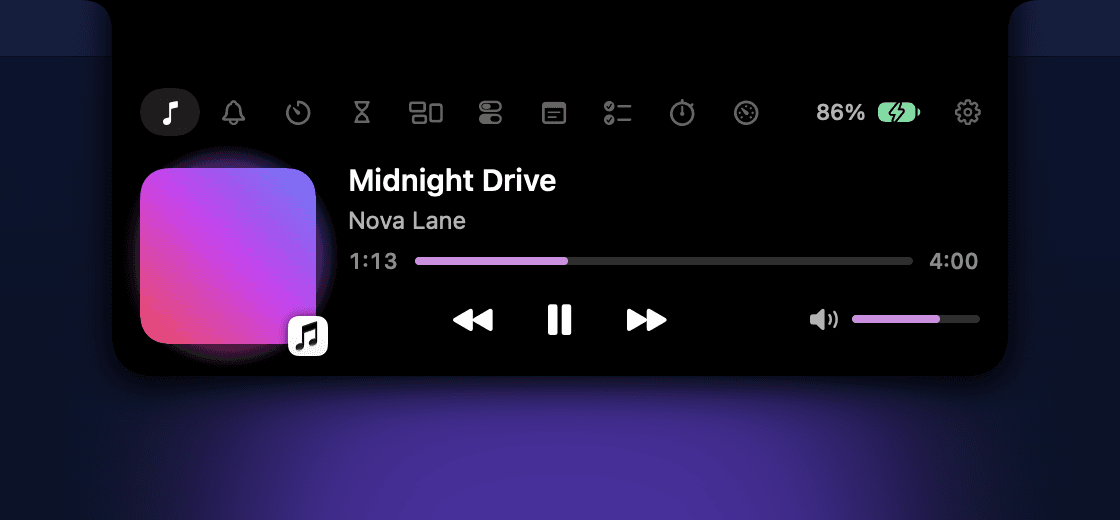
A few details make it practical day to day:
- No focus stealing. The island opens without taking focus from the app you’re typing in.
- Gestures. Two-finger swipe down to open, up to close, and left or right to skip tracks. A global shortcut opens the panel too.
- A volume HUD that fits. Volume, brightness and output device show in the island instead of the default macOS overlay.
- Out of the way when it should be. The island hides under full-screen apps and can stay out of screenshots.
No notch? It still works
On a Mac without a notch, such as an iMac or Mac mini, MacNotch floats a Dynamic Island at the top of the screen instead. An external display next to a MacBook copies the MacBook’s notch, so Now Playing looks the same on both screens. You can leave it on Auto or pick Notch or Dynamic Island for every screen.
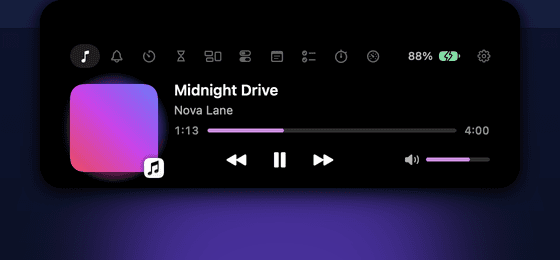
Music is only one page of the island. MacNotch also shows notifications, your next calendar event, a Dashboard, Quick Toggles, timers, a Pomodoro and a stopwatch, System stats, Notes, To-do, an opt-in Clipboard history, a file shelf with AirDrop, and alerts when the mic or camera is in use. It needs macOS 15 or later, makes no network requests, and version 1.1.0 isn’t notarized yet, so the first time you open it you click Open Anyway in System Settings → Privacy & Security.
Which should you use?
- You only want play and pause nearby: the built-in Now Playing item in the menu bar.
- You want to see what’s playing without clicking, and use the notch for something: MacNotch or another Dynamic Island app.
More ideas for the notch are in what to do with the MacBook notch and how to get a Dynamic Island on a Mac, and the rest of our guides are in the Notch & Dynamic Island category.
Sources
- Apple Mac User Guide, “Change Menu Bar settings on Mac” (Now Playing, Show When Active, Always Show): support.apple.com/guide/mac-help/mchlad96d366/mac
- Apple Mac User Guide, “Use Control Center on Mac”: support.apple.com/guide/mac-help/mchl50f94f8f/mac
- Apple Support, “How to adjust an app’s settings to appear below the camera area on your MacBook Air or MacBook Pro”: support.apple.com/en-us/102125
- MacNotch product page (Now Playing, gestures, HUD, requirements)
More on this topic: Notch & Dynamic Island guides · MacNotch
 Notch & Dynamic Island