How to check your MacBook’s battery cycle count and health
Find your MacBook’s battery cycle count in System Information and its health in System Settings, learn what the numbers mean, and see when service is due.
By winterzxzzUpdated 4 min read
To check your MacBook’s battery cycle count, hold Option, open the Apple menu, choose System Information and click Power: the Cycle Count is in the Battery Information section. For battery health, open System Settings → Battery and click the info button next to Battery Health. Below is what both numbers mean, when Apple suggests service, and how to keep them, along with charge, temperature and power draw, in your menu bar with MacStat, the system monitor we make.
Check the cycle count
- Hold Option, click the Apple menu and choose System Information.
- In the sidebar, under Hardware, click Power.
- Read Cycle Count under Battery Information.
One cycle is using 100% of the battery’s capacity, not one charge: using half the battery today and half tomorrow adds up to one cycle.
Check battery health
- Open System Settings → Battery.
- Click the info button next to Battery Health.
- Read the battery’s condition and its maximum capacity compared with when it was new.
Optimized Battery Charging, on by default on Apple silicon Macs, learns your daily charging routine and can delay charging past 80% when it expects your Mac to stay plugged in, so the battery spends less time full. macOS Tahoe 26.4 adds a Charge Limit for a fixed cap. The exact labels can differ between macOS versions.
Check it from Terminal
The same figures are one command away. Run system_profiler SPPowerDataType | grep -iE "cycle count|condition|maximum capacity" to print the cycle count, the battery’s condition and its maximum capacity, which is handy when you check several Macs or want the numbers in a script.
What the numbers mean
- Cycle limit: Apple lists 1,000 cycles for recent MacBook Air and MacBook Pro models; older models are rated for fewer. Reaching the limit doesn’t stop the battery working.
- 80% at the limit: Apple designs the battery to keep up to 80% of its original capacity at its maximum cycle count under normal conditions.
- Service Recommended: Battery Condition reads Normal, or Service Recommended when Apple suggests having the battery checked.
- Slightly under 100% on a new Mac is normal; Apple notes that capacity can read a little low depending on how long the Mac sat before first use.
Habits that help
- Leave Optimized Battery Charging on if your Mac is plugged in most of the day.
- Keep it cool. Heat ages batteries faster; a Mac charging under heavy load on a soft surface runs warm. Our MacTemp guide to a MacBook that gets hot while charging covers why.
- Don’t worry about each cycle. Batteries are made to be used.
- If the Mac will sit unused for months, store it about half charged rather than full or empty.
Battery details in the menu bar
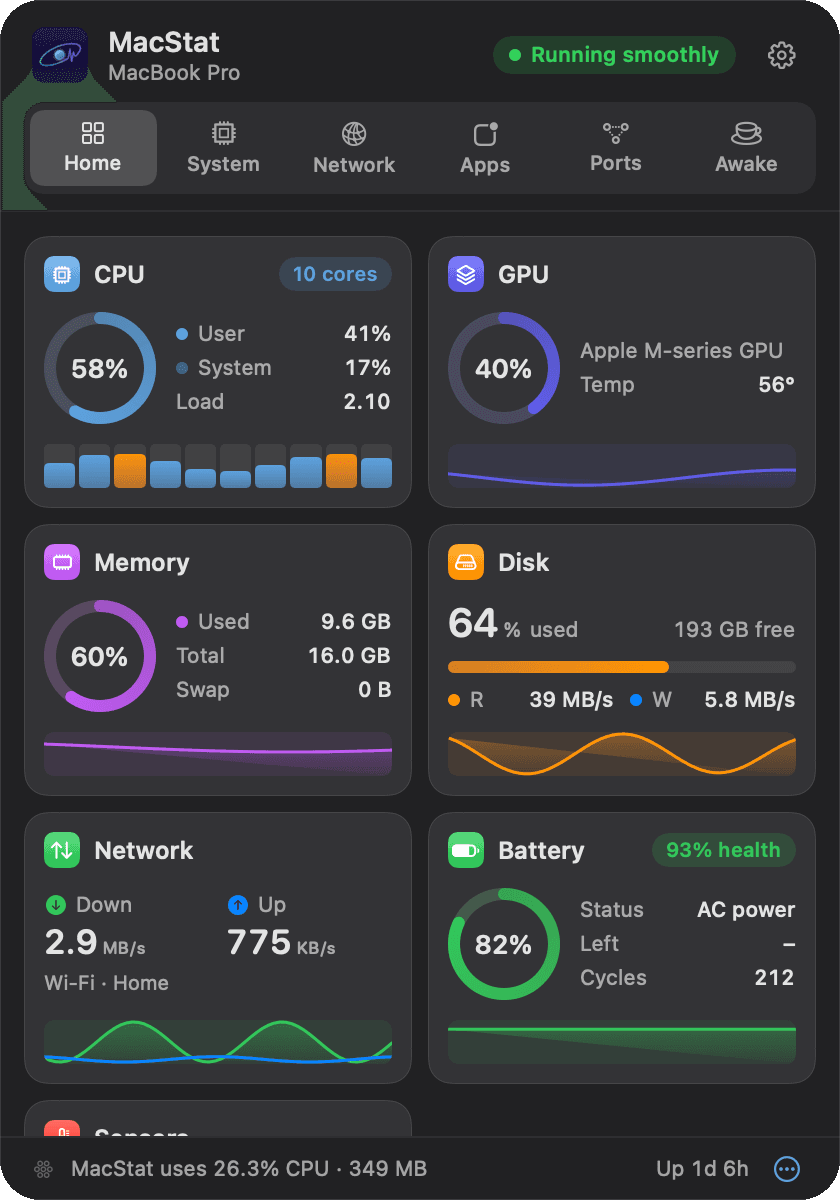
MacStat shows the battery level in the menu bar as a number, a ring or a meter. Click it for the details in one place: charge, whether it’s charging or how long is left, battery health, cycle count, battery temperature, power draw and the adapter’s wattage, plus CPU and GPU temperatures and fan speeds where your Mac reports them. An optional alert tells you when the battery drops below a level you choose.
For every temperature sensor and fan control, see MacTemp. More how-tos are in our system monitoring guides, including how to keep your Mac awake.
Sources
- Apple Support: Determine battery cycle count for Mac laptops
- Apple Support: Change Battery settings on Mac
- Apple Support: About Optimized Battery Charging and Charge Limit on Mac
- Apple Support: About battery health management in Mac laptops with Apple silicon
- Apple: Maximizing battery life and lifespan (storage at about half charge)
- MacStat product page (features, requirements)
More on this topic: System monitoring guides · MacStat
 System monitoring