MacBook hot while charging? What’s normal and what to do
Charging adds heat, especially when a MacBook is nearly empty and busy. What’s normal, Apple’s advice on heat and batteries, and the settings that help.
By winterzxzzUpdated 5 min read
A MacBook that’s warm while charging is usually fine: charging produces heat of its own, and it adds to whatever heat the Mac is already making. It tends to be warmest when the battery is low, the Mac is doing heavy work at the same time, and it’s sitting somewhere that traps air. What you want to avoid is charging in a hot environment, which Apple says can damage the battery further. Below is what’s normal, what to check, and the macOS settings that help — and, at the end, how MacTemp, the temperature monitor we make, shows battery temperatures alongside everything else.
Why charging makes a MacBook warmer
- Charging itself. Moving energy into a battery isn’t perfectly efficient, and the loss shows up as heat in the battery and the charging circuitry.
- Work on top of charging. Heavy jobs often wait until the Mac is plugged in, and the heat from the work and the charge adds up.
- A low battery. Apple says its lithium-ion batteries fast-charge to about 80% and then switch to slower trickle charging, so the first part of a charge is the busiest.
- The surroundings. A bed, a sofa, a sleeve or a sunny window all make it harder for the case to lose that heat.
What Apple recommends
- Room temperature. Apple says MacBook models work best between 10 °C and 35 °C (50 °F to 95 °F) ambient, with 16 °C to 22 °C (62 °F to 72 °F) as the ideal comfort zone, and that charging in high ambient temperatures can damage the battery further.
- Power adapters. Use only Apple-authorized adapters.
- Surface. A stable surface with good ventilation — not a bed, a pillow or under bedding — and nothing over the keyboard.
- Cases. Apple notes that charging a device inside certain styles of case can generate excess heat, which can affect battery capacity. If yours lives in a snug shell or sleeve, take it out to charge.
Settings that help
Optimized Battery Charging and Charge Limit
Optimized Battery Charging learns your routine and can hold the charge at 80% until you’re likely to need a full battery, which Apple says reduces battery wear by cutting the time spent fully charged. It needs macOS Big Sur 11 or later. On macOS Tahoe 26.4 or later with Apple silicon there is also Charge Limit, which lets you choose a maximum between 80% and 100%.
- Choose Apple menu → System Settings, then click Battery in the sidebar.
- Click the info button next to Charging.
- Turn Optimized Battery Charging on, or choose a Charge Limit, then click Done.
When either feature is holding the charge, the battery menu says “Charging On Hold” or “Charged to [%] Limit”, so you know why the Mac stopped at 80%.
Low Power Mode on the adapter
In System Settings → Battery, the Energy Mode section has separate “On battery” and “On power adapter” menus. Choosing Low Power Mode for the adapter reduces energy use while plugged in; Apple says that on macOS Sequoia 15.1 or later it also helps reduce fan noise on Macs with fans. It’s a reasonable choice if you mostly charge while doing light work.
How to tell whether it’s the battery or the work
macOS doesn’t show battery temperature. System Information → Power lists cycle count, condition and maximum capacity, but no temperature. Activity Monitor shows what’s using the CPU and energy, which tells you whether the heat is coming from work. To see the battery’s own sensors you need a monitor app.
MacTemp reads the battery gauge and the battery temperature sensors along with the CPU, GPU, SoC, memory and SSD, so you can see which group is warm. Its History page charts the battery next to the CPU and fans for up to 48 hours, so you can tell whether the temperature rose when you plugged in or when an export started. A battery health alert tells you when health, as macOS reports it, drops below your limit.
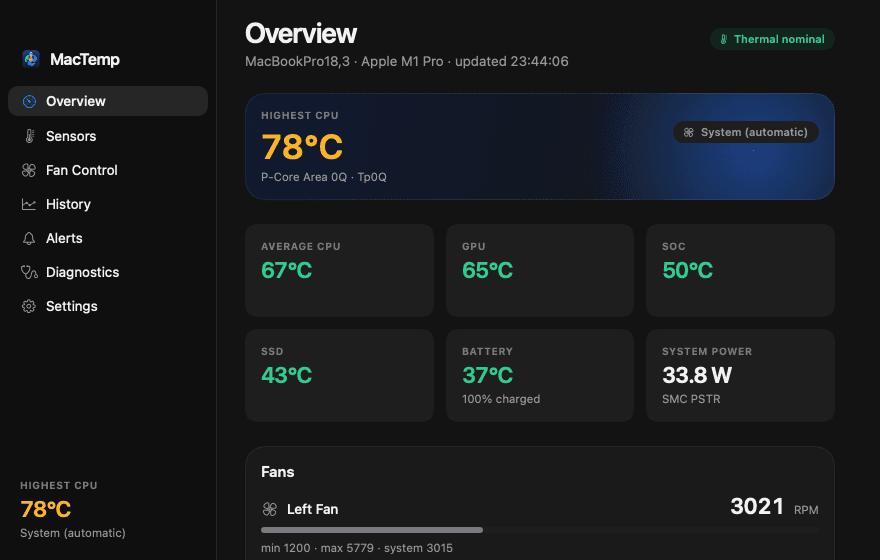
If you want a bit more cooling only while charging, MacTemp’s Rules mode can run a fan at a set percentage when a chosen sensor is above a threshold — on the power adapter only, on battery only, or both. Fan control is optional and needs MacTemp’s helper, which you approve in System Settings; monitoring works without it. Read is it safe to control your Mac’s fans? before you turn it on.
A routine that keeps charging cool
- Plug in on a desk or another hard surface, not on a bed, a sofa or your lap under a blanket.
- If the battery is nearly empty, let the first part of the charge happen while you do light work or take a break, and start exports, builds or big downloads afterwards.
- Keep the Mac out of direct sun and away from heaters; a cooler room helps more than anything else.
- Leave Optimized Battery Charging on, so the Mac doesn’t sit at 100% for hours.
- If the Mac is already warm before you plug in, check Activity Monitor before blaming the charger.
When to get it checked
- The case is too hot to touch comfortably while the Mac is idle and charging.
- The battery menu reports a service recommendation, or System Information shows a condition other than Normal.
- The battery looks swollen, or the trackpad or case has started to lift.
Contact Apple Support or an Apple Authorized Service Provider in those cases. For other heat problems, see why a MacBook gets hot and how to check your Mac’s CPU temperature, or browse the Mac temperature and fans category. The app is on the MacTemp page.
Sources
- Apple, “Batteries — Maximizing Battery Life and Lifespan”: apple.com/batteries/maximizing-performance
- Apple, “Batteries — Why Lithium-ion?”: apple.com/batteries/why-lithium-ion
- Apple Support, “About Optimized Battery Charging and Charge Limit on Mac”: support.apple.com/en-us/102338
- Apple Support, “Keep your Mac laptop within acceptable operating temperatures”: support.apple.com/en-us/102336
- Apple Support, “About Power Modes on your Mac”: support.apple.com/en-us/101613
- MacTemp product page (battery sensors, history, alerts, Rules mode)
More on this topic: Temperature & fans guides · MacTemp
 Temperature & fans