How to keep your Mac awake: settings, Terminal and a timer
Keep a Mac awake during a download, build or presentation: the System Settings options, the caffeinate command, and a menu bar timer that undoes itself.
By winterzxzzUpdated 4 min read
To keep a Mac awake for a while, run caffeinate in Terminal or use a keep-awake app; to change it for good, use the sleep options in System Settings. The difference matters: settings stay changed until you change them back, while caffeinate and keep-awake apps hold the Mac awake only as long as you ask and then let it sleep as usual. This guide covers all three, including Awake in MacStat, the menu bar system monitor we make.
Option 1: System Settings (permanent)
Apple puts the relevant switches in two places:
- When the display turns off: System Settings → Lock Screen, “Turn display off on battery when inactive” and “Turn display off on power adapter when inactive”.
- Sleep while the display is off, on a laptop: System Settings → Battery → Options, “Prevent automatic sleeping on power adapter when the display is off”.
- On a desktop Mac: System Settings → Energy, “Prevent automatic sleeping when the display is off”.
These suit a Mac that always serves files or runs jobs. For a one-off download they are easy to forget, and a laptop then stays awake every time it’s plugged in.
Option 2: caffeinate in Terminal (temporary)
caffeinate ships with macOS. It keeps the Mac awake while it runs; press ControlC to stop it.
| Command | What it does |
|---|---|
caffeinate -d | Keeps the display from sleeping. |
caffeinate -i | Keeps the Mac from idle sleep; the display can still turn off. |
caffeinate -s | Keeps the system awake, but only while on power. |
caffeinate -i -t 3600 | Same as -i, released after 3,600 seconds (one hour). |
caffeinate -i -w 1234 | Stays awake until the process with ID 1234 exits. |
caffeinate -i make | Runs a command and stays awake until it finishes. |
It is precise and built in, but you need a Terminal window open and the process ID for “until this finishes”. Run man caffeinate for every option.
See what is already keeping your Mac awake
If your Mac won’t sleep, something is probably holding it awake. In Terminal, pmset -g assertions lists the apps and processes currently preventing sleep, such as a browser playing a video. Activity Monitor’s Energy tab has a Preventing Sleep column that shows the same per app.
Option 3: a keep-awake timer in the menu bar
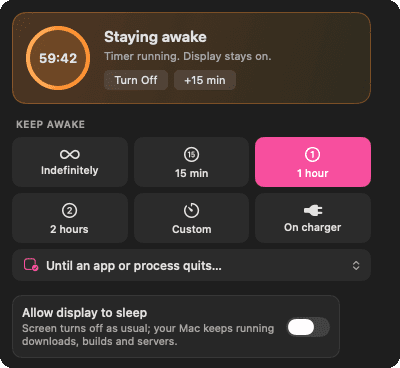
MacStat has an Awake tab that does the same as caffeinate without Terminal, and doesn’t change your sleep settings:
- Keep awake indefinitely, for 15 minutes, an hour, two hours, or a time you choose.
- Keep awake while on the charger, and let it sleep normally on battery.
- Keep awake until an app or process quits — handy for a long export or a build.
- “Allow display to sleep”: the screen turns off as usual while downloads, builds and servers keep running.
- A live list of what else is preventing sleep right now, so you can see why a Mac stays awake.
Common questions
Does keeping my Mac awake stop it sleeping when I close the lid?
Generally no. caffeinate and keep-awake apps prevent idle sleep, the kind that happens when nobody is using the Mac. Closing a MacBook’s lid normally still puts it to sleep; running with the lid closed is something macOS supports with an external display, keyboard and power connected.
Is the display or the Mac the thing to keep awake?
For downloads, backups, builds and servers, only the Mac needs to stay awake; let the display turn off to save power and the screen. Keep the display on for a presentation, a dashboard or a video call.
Why does my Mac stay awake when I don’t want it to?
Something is holding it awake: a video playing in a browser, a sync, or a forgotten caffeinate. pmset -g assertions, Activity Monitor’s Energy tab, or MacStat’s Awake tab shows what.
Keep an eye on heat and battery
A Mac that stays awake under load on a soft surface or in a closed bag can run warm, and a laptop on battery drains faster. Keep it on a hard surface and on power for long jobs. For temperatures and fans, see MacTemp; for more monitoring how-tos, see our system monitoring guides, such as how to check CPU usage on a Mac.
Sources
- Apple Support: Set sleep and wake settings for your Mac
- caffeinate options (ss64.com) and
man caffeinate man pmset(the-g assertionsreport)- MacStat product page (features, requirements)
More on this topic: System monitoring guides · MacStat
 System monitoring