iStat Menus alternatives: menu bar system monitors for Mac compared
Looking for an iStat Menus alternative? How Stats, Activity Monitor and MacStat compare on what they show, extras like ports and keep-awake, and price.
By winterzxzzUpdated 5 min read
iStat Menus is the best-known menu bar system monitor for Mac, and for many people it is still the right pick: it covers almost everything, it has been around for years, and it can control fans. People look for an alternative when they want something lighter, something that also covers developer chores such as finding what is listening on a port, or simply a different look. This guide compares iStat Menus with Stats, Activity Monitor and MacStat, the menu bar monitor we make, and says plainly where each one is the better choice.
The short answer
- Want the most complete monitor, fan control and weather included? Stay with iStat Menus.
- Want a community-built monitor with many modules? Look at Stats.
- Only need to check what is slowing your Mac now and then? Activity Monitor is already on your Mac.
- Want stats plus Apps, Ports and a keep-awake timer in one menu bar app? That is what MacStat is built for.
Feature comparison
| Feature | MacStat | iStat Menus 7 | Stats | Activity Monitor |
|---|---|---|---|---|
| Lives in the menu bar | Yes | Yes | Yes | Dock icon only |
| CPU, GPU, memory, disk, network, battery | Yes | Yes | Yes | Yes, in its window |
| Temperature sensors | CPU, GPU, battery and others your Mac reports | Yes | Yes | No |
| Fan control | No (see MacTemp) | Yes | Listed as not maintained | No |
| Listening ports per process | Yes | — | — | No |
| Keep-awake timer | Yes | — | — | No |
| Weather, clocks, Bluetooth batteries | No | Yes | Clocks and Bluetooth | No |
| Requires | macOS 14, Apple Silicon | macOS 13.5 (bjango.com) | macOS 12 | Included with macOS |
| Price model | One-time purchase | One-time licence, or through a Setapp subscription | No charge, sponsor option | Included |
“—” means the feature isn’t documented on the vendor’s own page. Competitor details are from bjango.com, the Mac App Store and the Stats project page as read in November 2026; check them before you buy, as features and prices change.
iStat Menus: the most complete option
Bjango’s iStat Menus covers CPU, GPU, memory, disks, network, sensors, battery and power, plus weather and a date and time menu, as listed on bjango.com in November 2026. It also shows the battery level of Bluetooth devices, and it can control fan speeds, including ramping them based on temperatures. The Mac App Store lists iStat Menus 7 at $11.99 as a one-time purchase, with optional weather subscriptions; it is also part of Setapp. There is a 14-day trial. If you want one app that does all of that and you don’t mind its breadth, it is hard to beat.
Stats: a community-built monitor
Stats is a community-built menu bar monitor with modules for CPU, GPU, memory, disk, network, battery, sensors, Bluetooth devices and a world clock, as described on its project page in November 2026. It needs macOS 12 or later and installs with Homebrew as well as from a download. Its fan control is listed as not maintained, so don’t count on it for cooling. Stats suits people who like to tinker and are happy without a vendor behind the app.
Activity Monitor: already on your Mac
Activity Monitor ships with macOS. It shows CPU, memory, energy, disk and network use per process, and Apple’s guide explains how to put a CPU graph on its Dock icon with View → Dock Icon. It has no menu bar item and no temperatures, and it shows history only for as long as its window is open. For a quick “what is busy right now?” it is all you need; our guide on how to check CPU usage on a Mac walks through it.
MacStat: stats plus the tools you reach for next
MacStat is the menu bar system monitor we make. It shows CPU and GPU load, memory pressure, disk, network, battery and the temperature sensors your Mac reports, with history kept on your Mac for 30 days. What sets it apart is what sits next to the numbers:
- Apps groups processes by app, shows each app’s CPU and memory, its code signature and notarization, and the ports it listens on, with Quit and Force Quit.
- Ports lists every listening TCP port with its process and project folder, flags ports reachable from your network, and opens or copies the local URL.
- Awake keeps your Mac awake for a set time, while on the charger, or until an app quits, without touching your sleep settings.
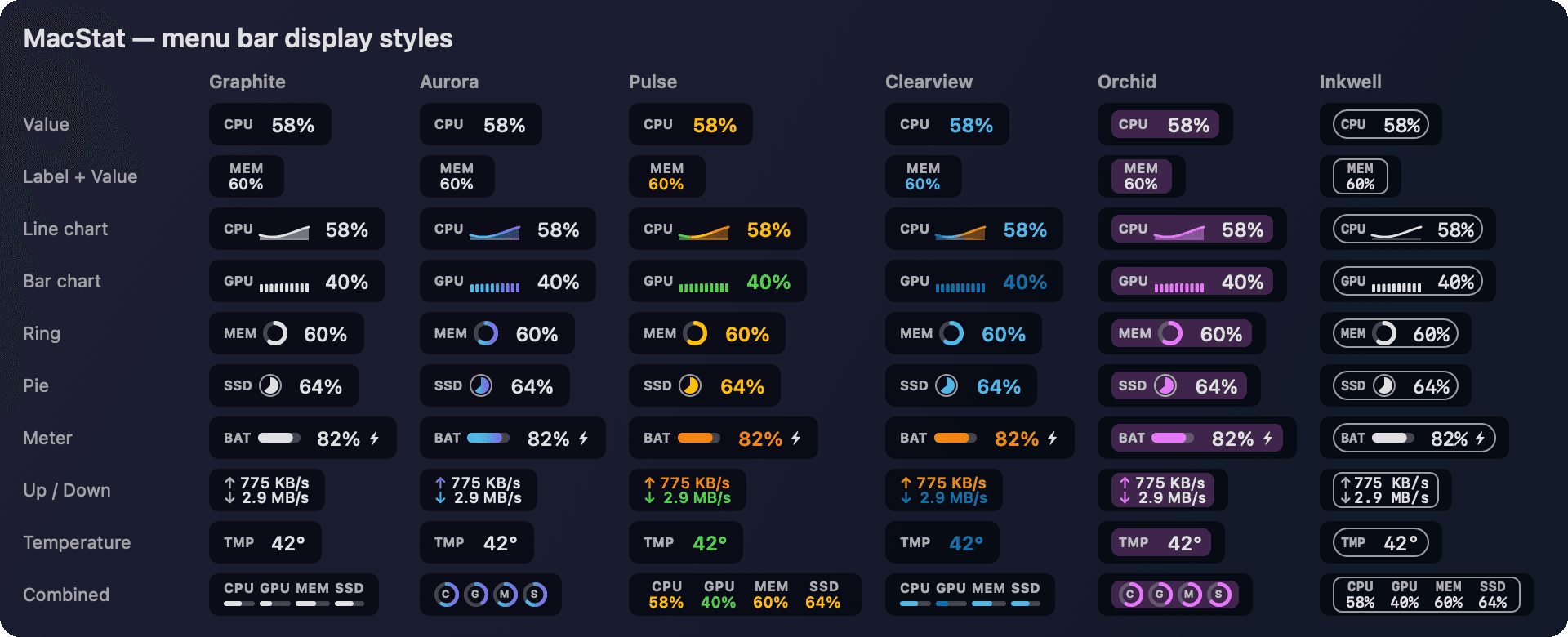
In the menu bar you choose between one chevron that opens a row of icons, one live item per metric, or a single compact item, in styles from plain values to rings, meters and charts and eleven theme presets.
Where MacStat falls short: it runs only on Apple Silicon with macOS 14 or later, it has no weather, clocks or Bluetooth battery levels, and it doesn’t control fans. If heat is your main worry, our MacTemp temperature and fan monitor reads every sensor your Mac reports and offers optional, safety-clamped fan control.
Who should pick which
- iStat Menus if you want the widest coverage, fan control and weather in one app.
- Stats if you like a community project and don’t need dependable fan control.
- Activity Monitor if you check now and then and don’t want anything in the menu bar.
- MacStat if you’re on Apple Silicon and want your stats, ports and keep-awake in one place.
More on reading the numbers: what memory pressure means on a Mac and the rest of our system monitoring guides.
Sources
- Bjango: iStat Menus (features, requirements, trial, Setapp)
- Mac App Store: iStat Menus 7 (price, in-app purchases)
- Stats project page (modules, requirements, fan control status)
- Apple Support: View CPU activity in Activity Monitor
- MacStat product page (features, requirements)
More on this topic: System monitoring guides · MacStat
 System monitoring