Vietnamese speech to text on a Mac: built-in Dictation or Whisper
Type Vietnamese by voice on a Mac: set up macOS Dictation for Tiếng Việt, what it doesn’t do, and how to dictate Vietnamese offline with a Whisper model.
By winterzxzzUpdated 4 min read
You can type Vietnamese by voice on a Mac in two ways that can keep your voice on the Mac. macOS Dictation supports Vietnamese (Vietnam), and Apple lists it among the languages that can be processed on device, though Apple notes exceptions such as dictating into a search box. Or you can run OpenAI’s Whisper model locally, which understands Vietnamese and many other languages. This guide sets up both, based on Apple’s documentation and the Whisper project pages as read in October 2026, and explains when each one is the better choice. We make MacVoice, one of the Whisper-based options, and say so where it comes up.
Option 1: macOS Dictation in Vietnamese
- Choose Apple menu → System Settings, then click Keyboard in the sidebar.
- Go to Dictation, turn it on and click Enable.
- Click Edit next to Languages and select Vietnamese (Vietnam). Keep English too if you dictate in both.
- Put the cursor where you want the text and start dictation with the Microphone key, the Dictation shortcut, or Edit → Start Dictation. With more than one language set up, click the language label next to the cursor to switch to Vietnamese.
On Apple’s macOS Feature Availability page, Vietnamese (Vietnam) appears both in the Dictation list and in the list for on-device dictation, with a note that on-device dictation requires downloading speech models. To see where your own dictation is processed, check the text below Dictation in Keyboard settings.
What to expect
- No automatic punctuation in Vietnamese. Apple’s Auto-Punctuation list doesn’t include Vietnamese as of October 2026, so say punctuation out loud or add it afterwards.
- Mixed-language sentences. You pick the dictation language by clicking the label next to the cursor or with the Globe key, so a Vietnamese sentence full of English product names or code terms can come out wrong.
- Timeout. Dictation stops when it hears no speech for 30 seconds.
For short messages and notes, that’s often enough. If you want one push-to-talk key everywhere, or a fully local setup you can verify with Wi-Fi off, a Whisper model is worth trying.
Option 2: Whisper running on your Mac
Whisper is OpenAI’s open speech recognition model. Its multilingual models handle Vietnamese; the English-only ones, whose names end in .en, don’t. OpenAI’s README says Whisper’s performance differs a lot from one language to another, so model size matters more for Vietnamese than for English. A small model that is fine for English can make mistakes in Vietnamese that a larger one avoids, so start big and step down only if it’s too slow.
Practical picks, using the ggml files most Mac apps load:
- large-v3-turbo (1.5 GiB), OpenAI’s faster take on large-v3 with a small accuracy cost. A good first choice.
- large-v3-turbo-q5_0 (547 MiB), the quantized build, if memory or disk is tight.
- large-v3 (2.9 GiB) if turbo still makes mistakes and your Mac handles the extra load.
- small (466 MiB) only if the larger models are too slow on your Mac; expect more mistakes.
Our guide to choosing a Whisper model on a Mac compares every size in detail.
Vietnamese dictation with MacVoice
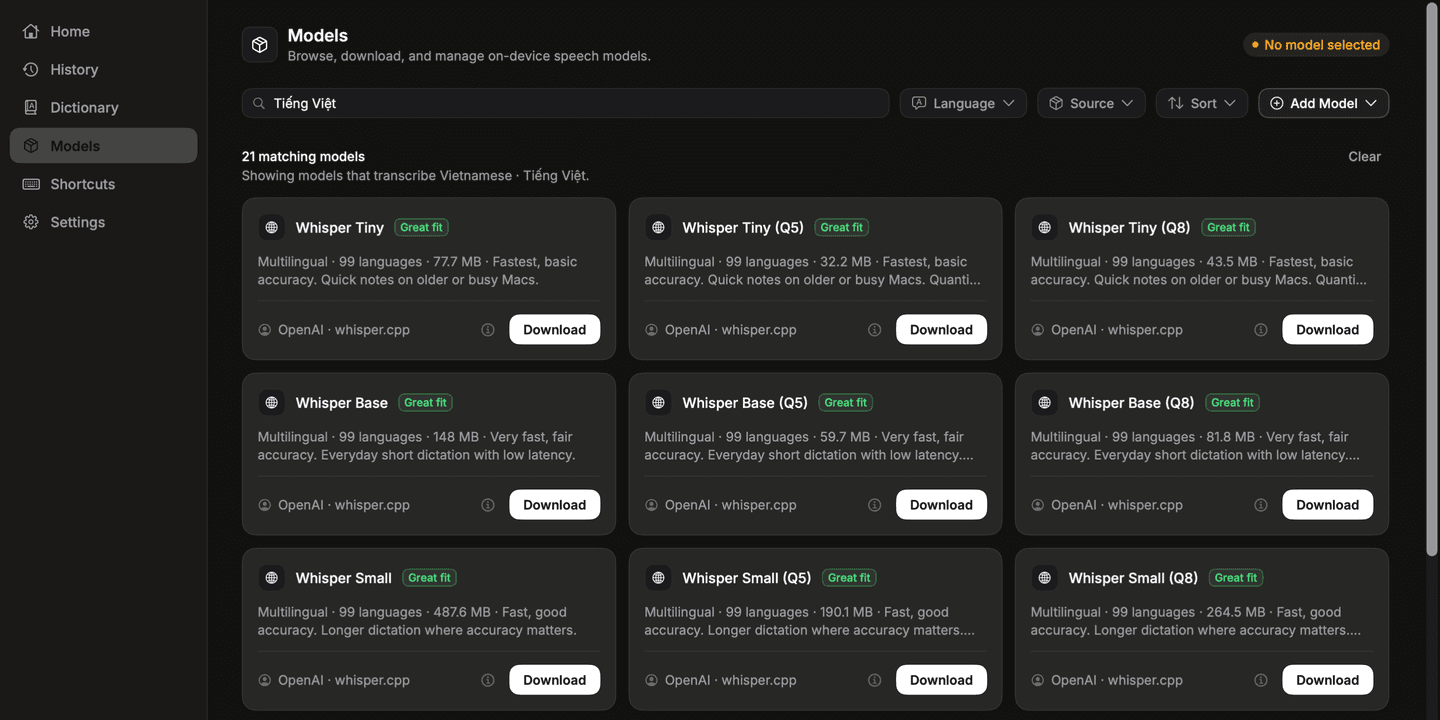
MacVoice is our push-to-talk dictation app for Mac. It runs Whisper on your Mac through whisper.cpp and types the text at your cursor in any app, from Slack and Notes to a terminal or your IDE. For Vietnamese you need a multilingual model, and the app’s Models page has them:
- Open Models in the sidebar and search for Vietnamese or Tiếng Việt; the list shows only the models that transcribe it.
- Download one that the page marks as a good fit for your Mac. Large v3 Turbo (Q5) is the usual pick on Apple Silicon.
- In Settings → Transcription, pick Vietnamese as the language, or leave auto-detect on.
- Hold your push-to-talk key, speak, release. The text lands where your cursor is.
Most people mix English terms into Vietnamese at work, and no model gets every one right. MacVoice’s personal dictionary auto-replaces phrases before the text is inserted, so a name or English term it keeps misspelling only needs fixing once. And because the audio stays in memory and is never written to disk, you can dictate client notes without wondering where the recording went. The app has no account and works with Wi-Fi off.
Which should you use?
- Short messages, nothing to install: macOS Dictation with Vietnamese added.
- Long texts, a fully local setup, or the same push-to-talk key everywhere: a Whisper app such as MacVoice with large-v3-turbo.
- An Intel Mac: macOS Dictation; MacVoice needs Apple Silicon and macOS 14 or later.
For a deeper comparison of the two engines, read macOS Dictation vs Whisper. More guides are in the voice dictation category.
Sources
- Apple Mac User Guide, “Dictate messages and documents on Mac”: support.apple.com/guide/mac-help/mh40584/mac
- Apple, macOS Feature Availability (Dictation, on-device dictation, auto-punctuation): apple.com/macos/feature-availability
- OpenAI Whisper README (multilingual models, accuracy by language, turbo): github.com/openai/whisper
- whisper.cpp model list (ggml sizes, quantized builds): github.com/ggml-org/whisper.cpp/tree/master/models
- MacVoice product page (languages, model library, dictionary, privacy)
More on this topic: Voice dictation guides · MacVoice
 Voice dictation