How to set a timer on a Mac: Clock, Siri, and timers in the notch
Set a timer on a Mac with the Clock app or Siri, run several at once, stop music at bedtime, and keep timers and a Pomodoro in the notch.
By winterzxzzUpdated 4 min read
To set a timer on a Mac, open the Clock app, click Timers, choose a time and click Start, or just ask Siri, with something like Apple’s own example, “Set a pizza timer for 12 minutes.” Timers keep running when you switch apps or your Mac sleeps, and you can run several at once. Apple’s guide doesn’t describe a way to keep the countdown in sight while you work. This guide covers the built-in Clock app, using Apple’s Clock User Guide as of October 2026, and then how MacNotch, the Dynamic Island app we make, keeps timers and a Pomodoro at the top of your screen.
Set a timer with the Clock app
- Open Clock. A quick way: click the time in the menu bar, then click the Clock widget.
- Click Timers at the top of the window, or choose View → Timers.
- Set how long the timer should count down.
- Click Start. Pause and Resume stop it briefly; Cancel resets it.
When it finishes you get a notification. Click Options on it and choose Stop, or Repeat to run the same timer again.
Run several timers at once
With one timer going, use the add button in the Timers window to start another, either a custom length or a preset. Naming them (“Standup,” “Oven”) and giving each a different sound tells you which one just finished, and timers you used recently sit at the bottom of the window, ready to start again.
Stop music or a video when the timer ends
Clock can also act as a sleep timer. Set a timer as usual, open the “When timer ends” menu, choose Stop Playing at the bottom of the sound list, and click Start. Whatever is playing stops when the countdown hits zero.
Use Siri or Shortcuts
Ask Siri for a timer by name and length. For timers you start every day, Apple suggests creating a shortcut, which you can then run from the menu bar or with Siri.
The catch: it lives in the Clock window
Apple’s guide shows a running timer in the Clock window and a notification when it ends. Apple’s guide doesn’t describe a countdown that stays on screen while you work in other apps. For cooking, that’s fine. For timeboxing work or a Pomodoro session, seeing the countdown is half the point.
Timers and a Pomodoro in the notch with MacNotch
MacNotch turns the MacBook notch into a Dynamic Island, and three of its pages are for time. You get quick timers, up to three running at once, a Pomodoro timer and a stopwatch, right at the top of your screen, a click away from whatever app you’re in. A running timer keeps counting in the compact island, with a ring at one end and the time at the other.
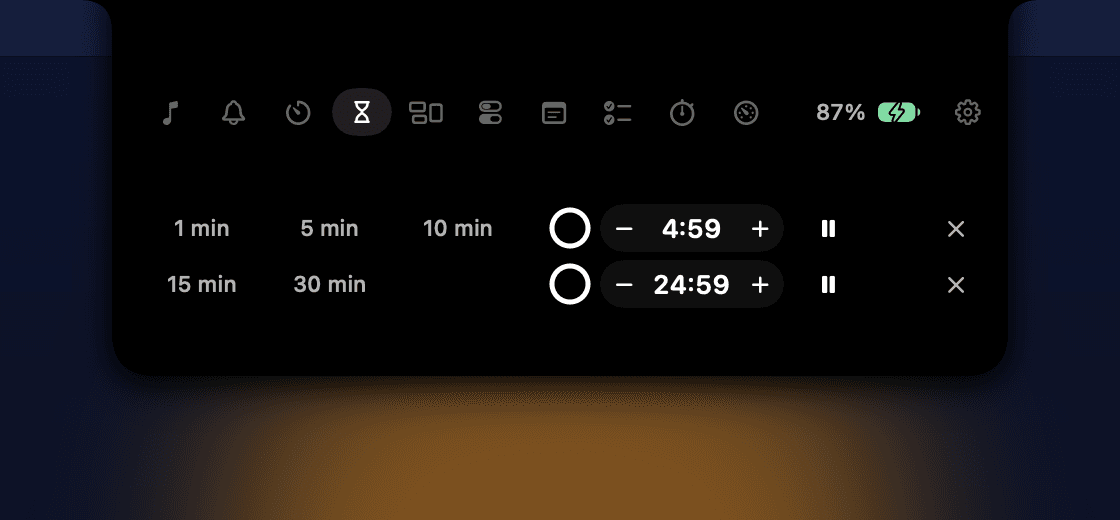
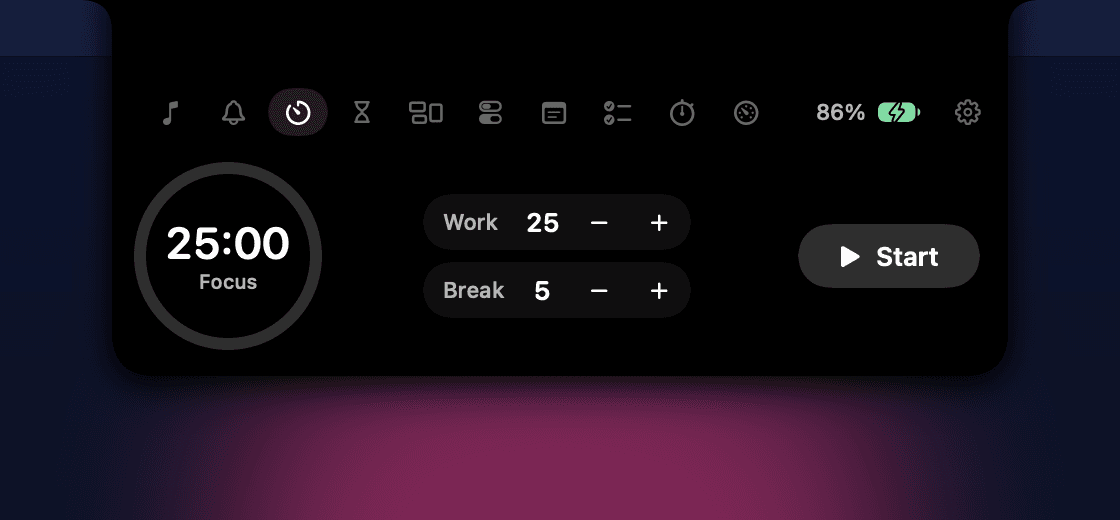
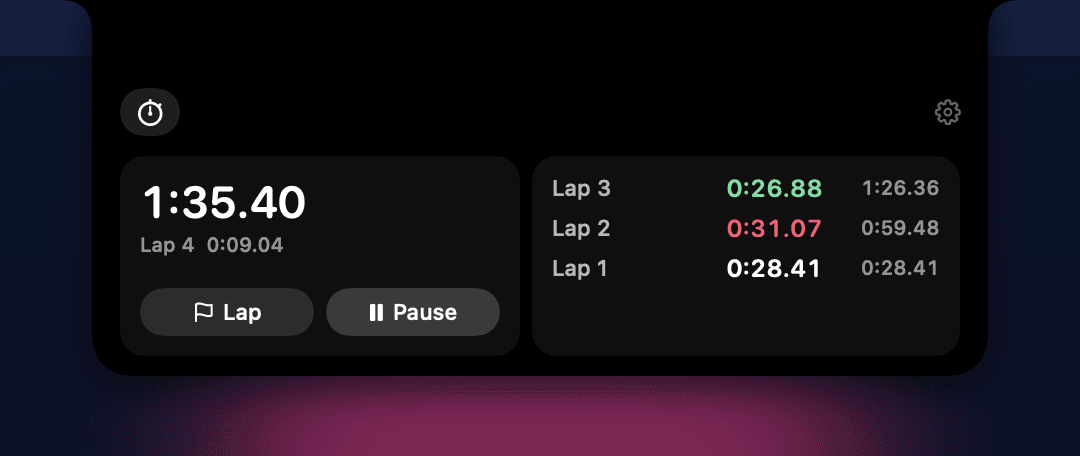
The same island has a Today page with your next calendar event and a countdown to it, and a To-do page with your Reminders to tick off, so the “what’s next” question is answered in one place. It opens without taking focus from the app you’re in, and hides under full-screen apps. External displays copy the MacBook’s notch, and on a Mac without one it floats as a Dynamic Island at the top of the screen instead.
MacNotch needs macOS 15 or later, makes no network requests and has no analytics. The build isn’t notarized yet, so the first time you open it, click Open Anyway in System Settings → Privacy & Security. For more ideas, read what to do with the MacBook notch and how to get a Dynamic Island on a Mac, or browse the Notch & Dynamic Island guides. The full feature list is on the MacNotch page.
Sources
- Apple Clock User Guide, “Set timers in Clock on Mac”: support.apple.com/guide/clock-mac/apdw3d5aebf9/mac
- MacNotch product page (timers, Pomodoro, calendar, requirements)
More on this topic: Notch & Dynamic Island guides · MacNotch
 Notch & Dynamic Island