Is a Mac cleaner safe? What you can delete on a Mac, and what to leave alone
Whether a Mac cleaner is safe depends on what it removes and if you can undo it. What’s safe to delete on a Mac, what isn’t, and five questions to ask.
By winterzxzzUpdated 6 min read
A Mac cleaner is safe when it removes only things that can be rebuilt or that you have checked, shows you the list first, and lets you undo the removal. It becomes risky when it deletes outright, cleans on its own schedule, or asks for more access than its job needs. macOS already clears caches and logs by itself when space runs low, so many people don’t need a cleaner at all. This guide lists what is safe to delete, what to leave alone, and how to judge any cleaner, including MacCleaner, the one we make.
What macOS already protects and cleans
Two built-in safeguards are worth knowing. First, System Integrity Protection: Apple describes it as protecting /System, /usr, /bin, /sbin, /var and the apps that come with macOS, even from software that has an administrator password. Third-party software can still write to /Applications, /Library and /usr/local, so those areas are only as safe as the tools you let into them.
Second, macOS tidies up after itself. Apple’s storage guide explains that a nearly full disk partly cleans itself: macOS deletes the caches and logs it knows it can do without once free space runs short. Time Machine local snapshots are also managed for you: Apple counts their space as available and deletes them as they age or as room is needed.
What is safe to delete on a Mac
| Item | Safe? | What to know |
|---|---|---|
| Old files in Downloads | Yes, once checked | Usually installers and copies you no longer need; Apple’s storage guide includes it among the places to clear. |
| Old iPhone and iPad backups | Yes, if you don’t need them | Apple notes you can delete old ones. Our advice: keep the latest for each device you still use. |
| Mail junk and deleted items | Yes | In Mail, use Mailbox → Erase Junk Mail and Erase Deleted Items. |
| Apps you don’t use | Yes | Use the app’s own uninstaller if it has one. Deleting an app doesn’t cancel its subscription. |
| Browser caches | Yes | Rebuilt as you browse. Removing cookies too may sign you out of sites. |
App caches in ~/Library/Caches | Mostly | Quit the app first. A few apps keep things you value there, such as offline media. |
| Logs | Yes | Diagnostic records; macOS clears them itself when space is short. |
| The Trash | Yes, but final | Emptying it is permanent. Check it first. |
| App data in Application Support and Containers | Only on purpose | Often your documents, settings and libraries. Remove it only with an app you’re done with for good. |
| Photos, Music and TV libraries | Not from Finder | Trim them inside their own apps, not by deleting files inside the library. |
| Time Machine local snapshots | Leave them | macOS deletes them as needed. To clear them by hand, Apple says to switch backups to manual for a few minutes. |
/System and system apps | No | Protected by System Integrity Protection; nothing to gain. |
DaisyDisk’s guide to the same question puts the rule simply: delete what you recognise as your own, because your own files are what take up the most space. That fits Apple’s storage guide, which counts deleting media you can stream again, files in Downloads and old device backups among its suggestions.
Five questions to ask any Mac cleaner
- Does it show you what it will remove before it removes it? A list with paths and sizes is the minimum.
- Can you undo it? Moving items to the Trash leaves you a way back with File → Put Back. Deleting immediately doesn’t.
- What access does it ask for, and why? Full Disk Access lets an app read folders macOS otherwise keeps private. An administrator password or a privileged helper lets it change things outside your account. Each should match a feature you want.
- Does it clean on its own? Background or scheduled cleaning means things go without you looking.
- Can you exclude things? A keep list stops the same cache being offered every time and protects anything you know you need.
Established cleaners answer these in different ways. MacPaw says CleanMyMac checks a Safety Database of keep-or-remove rules it has maintained since 2008, by default offers only automatically generated system and app data, and supports ignore lists, as described in MacPaw’s knowledge base in November 2026. DaisyDisk takes the opposite route: it does no automated cleaning at all, reads only file names and sizes, and blocks the deletion of system-critical items (daisydiskapp.com, November 2026). Both are reasonable; they suit different people.
How MacCleaner answers them
Here is how MacCleaner, our app, answers them, taken from its feature list:
- Review first. It shows what it found with sizes and waits; nothing is removed until you’ve reviewed it. In Clean, an optional preview shows what would happen and changes nothing.
- Undo by default. What Clean, Uninstall and Analyze remove moves to the Trash; the exception is emptying the Trash itself, which is permanent. Each removal passes one safety gate, is checked again just before it moves, and is written to a log first.
- Access you choose. It never asks for an administrator password. Full Disk Access is optional; it lets MacCleaner measure the Trash and a few app caches, and, as with any app, granting it also opens the folders macOS otherwise keeps private. The files it scans are processed on your Mac.
- Nothing unattended. No background cleaning and nothing at login.
- Exclusions that hold. “Never Offer This” keeps a file or folder out of Clean, and the gate enforces it at removal time.
- Your data stays unticked. When you uninstall an app, leftovers are matched by its identifier, never by a look-alike name, and its data in Application Support and Containers starts unchecked.
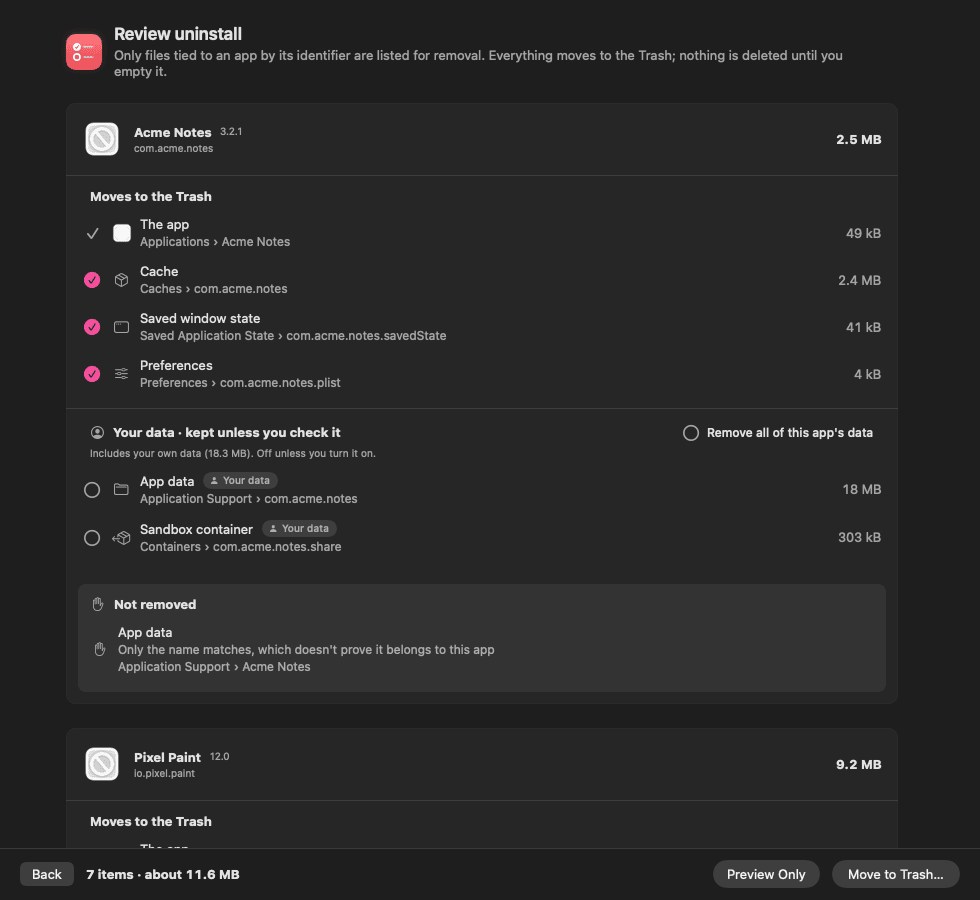
What still needs care: emptying the Trash is permanent, which is why MacCleaner leaves the Trash unselected in Clean. Duplicates are confirmed by comparing file contents and one copy is always kept, but look at which copies are selected before you clean. And MacCleaner’s builds aren’t notarized by Apple yet, so the first launch needs Open Anyway in System Settings → Privacy & Security. As with any tool that removes files, keep a Time Machine backup.
So, do you need a Mac cleaner?
If you rarely run low on space, probably not: Storage settings and macOS’s own housekeeping are enough. A cleaner earns its place when caches from many browsers and developer tools pile up, when you uninstall apps often, or when you want duplicates and large files found for you. For hands-on steps, see how to clear the cache on a Mac; to compare tools, read our CleanMyMac alternatives roundup. All our cleanup and disk space guides are in one place.
Sources
- Apple Support: About System Integrity Protection on your Mac
- Apple Support: Free up storage space on Mac
- Apple Support: Optimize storage space on your Mac
- Apple Support: About Time Machine local snapshots
- Apple Support: Delete or uninstall apps on Mac
- Apple Support: Delete files and folders on Mac
- MacPaw knowledge base: CleanMyMac safety considerations and Safety Database
- DaisyDisk tech specs and DaisyDisk: What is safe to delete?
- MacCleaner product page (features, permissions, requirements)
More on this topic: Cleanup & disk space guides · MacCleaner
 Cleanup & disk space
 Notch & Dynamic Island