The best CleanMyMac alternatives for Mac, and where CleanMyMac still wins
Looking for a CleanMyMac alternative? Compare macOS Storage settings, DaisyDisk, OnyX, AppCleaner and MacCleaner on price, safety and what each cleans.
By winterzxzzUpdated 8 min read
The best CleanMyMac alternative depends on which part of CleanMyMac you actually use. If you mostly want disk space back, macOS’s own Storage settings and a disk map such as DaisyDisk cover a lot of it. If you want maintenance scripts, OnyX has them. If you only uninstall apps, AppCleaner does that one job. And if you want caches, leftovers and duplicates cleared with a review step and a Trash you can undo from, there is MacCleaner, which we make, so read that section with that in mind. CleanMyMac remains the most complete package of the lot, and this guide says where.
What CleanMyMac does, and what it costs
On macpaw.com in November 2026, CleanMyMac is presented as an all-in-one cleaner and maintenance app. Its Smart Care button runs five jobs in one pass: a cleanup, a threat scan, performance tasks, software updates and a storage declutter. Beyond that it lists malware removal, an uninstaller that also clears leftovers, app updates, duplicate and similar-photo finders, large and forgotten files, and a cloud storage cleanup. It needs macOS 11 or later, and MacPaw notes that the app is notarized by Apple. Its Space Lens module (MacPaw knowledge base, updated August 2026) draws a map of a disk’s folders and files by size.
In November 2026 the product page gave its pricing as “starting at $3.33/month”, without saying which plan that figure belongs to. MacPaw’s knowledge base (updated August 2026) lists monthly and annual subscriptions and a one-time purchase on both the MacPaw Store and the App Store, plus CleanMyMac inside a Setapp subscription. A one-time license covers updates to the current major version only; new major versions are an upgrade. There is a 7-day trial.
That is a lot of app. People who look for something else usually have a narrower reason: they don’t want a subscription, they don’t need malware scanning, or they want to see every file before anything is removed.
How to pick an alternative
- Find what is actually using the space. Your own videos, downloads and old backups are usually far bigger than caches. A tool that shows sizes by folder matters more than one that cleans junk.
- Check how it removes things. Moving to the Trash can be undone; deleting outright can’t.
- Check what it asks for. An administrator password or a privileged helper lets an app touch more of the system. Ask whether the features you want really need that.
- Decide whether you want automation. A one-button clean is fast; a reviewed clean is slower but leaves you in charge.
1. macOS Storage settings (built in)
Start here, because it costs nothing and needs no install. In System Settings → General → Storage, macOS shows what each category uses and offers three recommendations: Store in iCloud, Optimize Storage and Empty Trash automatically, which erases items after 30 days in the Trash. You also get some housekeeping without lifting a finger: Apple’s storage guide notes that once the disk gets tight, macOS throws out caches, logs and similar leftovers it considers safe to lose.
Where it falls short: “System Data” is a catch-all category that Apple describes only in general terms, there is no duplicate finder, and macOS has no leftover finder of its own. Apple’s uninstall guide says an app’s own uninstaller, when it has one, is the best way to remove the app along with data it stored in other locations; otherwise its advice is to drag the app to the Trash.
2. DaisyDisk
DaisyDisk is a disk map: it scans a drive and draws it as rings, so the folders eating your space are obvious at a glance. As listed on daisydiskapp.com in November 2026, it costs $9.99 once for a lifetime license on up to five personal Macs, runs on macOS 10.13 or later on Apple Silicon and Intel, reads only file names and sizes, and can also scan Dropbox, Google Drive, OneDrive and Box. It can scan as administrator to reveal hidden space and can find and delete APFS snapshots. Its site makes a point worth hearing: in its view, cleaning caches recovers little, and the real fix is finding the large files you no longer need.
Where it falls short: its pages don’t list cache cleaning, an uninstaller or a duplicate finder. You decide every deletion yourself, which is the point, but it takes more of your time.
3. OnyX
OnyX, from Titanium Software, is a long-running maintenance utility that is free to use and supported by donations. Its page lists verifying system files, cleaning tasks, deleting caches, rebuilding databases and indexes, uninstalling apps, and adjusting Finder, Dock and Safari settings. There is a separate build for each major macOS; in November 2026 the current one, OnyX 5.1.2, is for macOS 27 on Apple silicon.
Where it falls short: it is a toolbox of system tasks, not a guided cleanup, so you need to know what each option does. Its page doesn’t list a disk map or a duplicate finder.
4. AppCleaner and Pearcleaner
If the part of CleanMyMac you use is the uninstaller, a single-purpose tool may be enough. FreeMacSoft’s AppCleaner is a small app you drop another app onto; it finds the related files and removes them together. As listed on freemacsoft.net in November 2026, version 3.7 needs macOS 15 or later, and the site asks only for donations. Pearcleaner is a free, source-available uninstaller with extras such as orphaned-file search and a Homebrew manager, but as of November 2026 its README marks the project as on hold, with development largely stopped since the end of 2025.
Where they fall short: both are built around removing apps, not around clearing caches or showing where your space went.
5. MacCleaner
MacCleaner is our app. It is a cleaner for people who don’t trust cleaners: it finds things, shows them with sizes, and waits. It needs macOS 14 or later and runs on Apple Silicon and Intel Macs. It is a one-time purchase with no subscription and no account.
- Clean: app caches, logs, the caches of eight browsers, developer caches (Xcode DerivedData and simulators, SwiftPM, CocoaPods, Homebrew, npm, Yarn, pip, Go, Gradle, Cargo) and the Trash. You review the list first, with an optional preview that changes nothing.
- Uninstall: removes an app with the Library files it leaves, matched by the app’s identifier rather than a similar name. Your own data in Application Support and Containers starts unchecked.
- Analyze: folders by size with a ring chart and large and old files, from a scan that reads sizes only and never opens your files. Duplicates are found on request by comparing the contents of same-size files, and one copy is always kept.
- Removals go to the Trash, so you can put them back until the Trash is emptied. The one exception is emptying the Trash itself, which Clean offers but leaves unselected because it is permanent. A “Never Offer This” list keeps chosen files and folders out of Clean for good.
- Nothing unattended: no background cleaning, nothing at login, no administrator password, no analytics. It also has a live status view and three explained maintenance tasks.
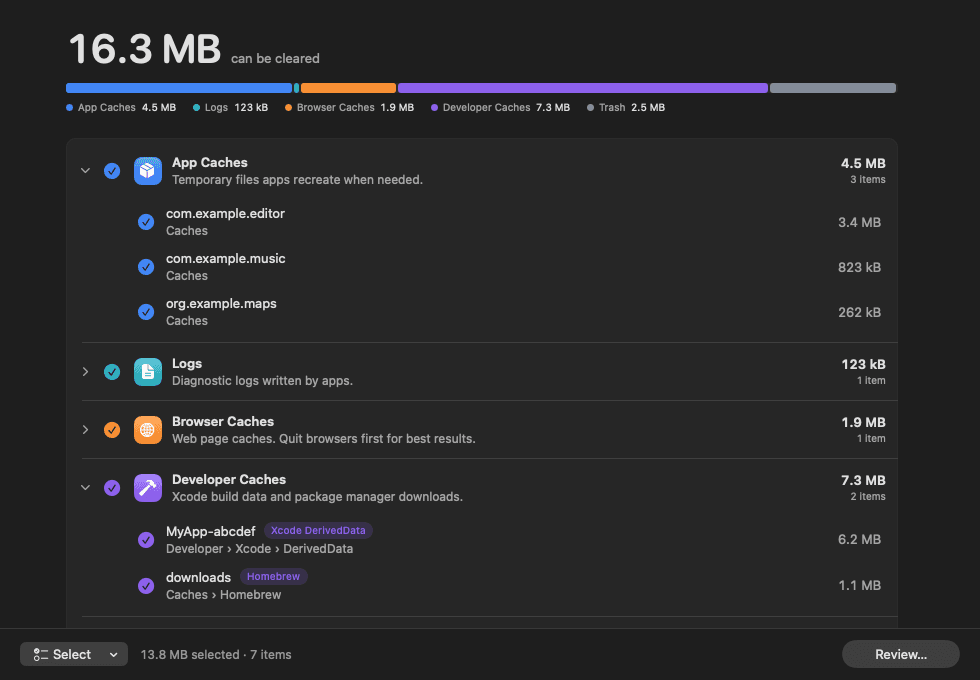
Where it falls short: MacCleaner has no malware scanner, no similar-photo matching, no app updater and no cloud storage cleanup, and there is no one-button Smart Care equivalent: every clean waits for your review, which is slower. Its builds aren’t notarized yet, so the first launch needs Open Anyway in System Settings → Privacy & Security. CleanMyMac, by contrast, is notarized and also sold on the App Store.
One more thing about the Trash, for any app that uses it: items stay there only until it is emptied, and that can happen without you. Finder can remove items after 30 days if you turn that on, and Apple says items from iCloud Drive leave the Trash after 30 days whatever that setting is.
Side-by-side summary
| Feature | CleanMyMac | macOS Storage | DaisyDisk | OnyX | MacCleaner |
|---|---|---|---|---|---|
| Price model | Subscription or one-time | Included | $9.99 once | Free, donations | One-time purchase |
| Cache and log cleanup | Yes | Automatic, when space is needed | Manual, you pick files | Yes | Yes, after review |
| Uninstall apps | Yes, with leftovers | Drag to Trash | — | Yes | Yes, with leftovers |
| Folders by size / large files | Yes, storage map (Space Lens) | By category | Yes, disk map | — | Yes |
| Duplicates | Yes, plus similar photos | No | — | — | Exact duplicates |
| Malware scanning | Yes | — | — | — | No |
| Cloud storage | Cleanup | Store in iCloud | Scan | — | No |
| macOS requirement | 11+ | — | 10.13+ | One build per macOS | 14+ |
“—” means the vendor’s pages didn’t document it when we checked; it doesn’t prove the feature is missing.
Which one should you pick?
- Stay with CleanMyMac if you want malware scanning, app updates, similar-photo cleanup and one-button maintenance in a single notarized app. None of the alternatives here covers all of that.
- Use macOS Storage settings first in any case; it is free and often enough.
- Pick DaisyDisk if your real question is “what is filling my disk?”.
- Pick OnyX if you are comfortable with system maintenance tasks and want them free.
- Pick AppCleaner if you only need to uninstall apps cleanly.
- Pick MacCleaner if you want caches, leftovers and duplicates handled with a review step, a Trash you can undo from and no password prompts, for a one-time price.
Before you clear anything, read is a Mac cleaner safe? for what you can delete without worry, or how to clear the cache on a Mac to do it by hand. Everything else is in the Mac cleanup and disk space guides.
Sources
- macpaw.com/cleanmymac (features, requirements, starting price)
- MacPaw knowledge base: CleanMyMac marketplaces and purchase options
- MacPaw knowledge base: Get started with Space Lens
- daisydiskapp.com, daisydiskapp.com/support/pricing and daisydiskapp.com/specs
- titanium-software.fr: OnyX
- freemacsoft.net/appcleaner
- Pearcleaner README on GitHub
- Apple Support: Free up storage space on Mac
- Apple Support: Optimize storage space on your Mac
- Apple Support: Delete or uninstall apps on Mac
- Apple Support: Delete files and folders on Mac
- MacCleaner product page (features, requirements)
More on this topic: Cleanup & disk space guides · MacCleaner
 Cleanup & disk space
 Temperature & fans