How to clear the cache on a Mac (browser, app and system caches)
Clear your Mac’s cache safely: Safari and Chrome website data, app caches in ~/Library/Caches, system caches via safe mode, and what macOS clears for you.
By winterzxzzUpdated 5 min read
To clear the cache on a Mac, remove the browser’s website data in its settings, delete the contents of an app’s folder in ~/Library/Caches while that app is closed, and, for system caches, restart once in safe mode. You often don’t need to do any of it: macOS clears caches by itself when space runs low. This guide covers each built-in method first, then where MacCleaner, the cleanup app we make, saves you the digging.
Should you clear the cache at all?
A cache is a copy of something an app or website already fetched or worked out, kept so the next time is quicker. Apps rebuild it when they need it, so clearing one usually costs you only a slower first launch or page load, but the space it frees tends to fill up again. The exceptions are apps that keep things you care about, such as offline media, in their cache folder; the cautions below cover them. Part of this job is also done for you: according to Apple’s storage guide, a Mac that runs short of room gets rid of cache and log files it judges disposable, Safari’s website data among them.
Clearing by hand is worth it in three cases:
- A website or app misbehaves and starts working again in a private window or a new user account. Stale data is a common cause; Apple’s Safari troubleshooting page suggests removing that site’s data.
- You need room right now, for example to install a macOS update.
- Developer tools have built up large build and package caches you no longer need.
If the goal is disk space in general, check System Settings → General → Storage first. Your own files are usually the bigger win; our guide on what is safe to delete on a Mac goes through them.
Clear the cache in Safari
Safari keeps cached pages together with cookies and other data for each website.
- Open Safari and choose Safari → Settings, then click Privacy.
- Click Manage Website Data.
- Select the sites you want to clear and click Remove, or click Remove All.
Apple warns that removing this data may sign you out of websites or change how they behave, so if a single site is the problem, remove only that one. Clearing History (History → Clear History) is a different job: it removes the record of where you browsed.
Clear the cache in Google Chrome
- Open Chrome and click More at the top right.
- Choose Delete browsing data.
- Pick a time range, such as Last hour or All time.
- Tick Cached images and files. Leave Cookies and other site data unticked if you want to stay signed in to websites.
- Click Delete data.
Google adds a note for people signed in to Chrome: data saved to your Google Account, such as history and autofill, is removed from your other devices and from the account as well when you delete it.
Clear app caches in ~/Library/Caches
Most apps keep their caches in the Caches folder inside your user Library, which Finder hides by default. Work on one app at a time:
- Quit the app whose cache you want to clear.
- In Finder, choose Go → Go to Folder, type
~/Library/Cachesand press Return. (Holding Option while you open the Go menu also shows Library.) - Open the folder named after the app; it is often its identifier, such as
com.company.app. - Select the items inside that folder and move them to the Trash. Leave the folder itself in place.
- Open the app again and check that it works, then empty the Trash when you are sure.
A few cautions that matter more than the steps:
- Not every “cache” is disposable. Some apps keep things you care about in their cache folder. MacPaw’s own documentation gives Spotify’s offline music as an example its cleaner deliberately handles with care.
- Stay inside your home folder.
~/Library/Cachesholds your account’s caches. Leave/Libraryand/Systemalone; macOS guards much of the system with System Integrity Protection in any case. - Use the Trash, not Delete Immediately. Items stay in the Trash until it is emptied and can be put back with File → Put Back. Once emptied, they’re gone. The Trash can also empty without you: Finder removes items after 30 days if that setting is on, and Apple says items from iCloud Drive go after 30 days regardless.
Clear system caches with safe mode
You can’t safely hand-delete macOS’s own caches, but safe mode does it for you. Apple’s safe mode article explains that a safe-mode startup throws away part of macOS’s cache data, the font and kernel caches among it. macOS rebuilds those files afterwards, so the room you gain is only temporary.
- Mac with Apple silicon: shut down, then press and hold the power button until the startup options appear. Select your startup disk, hold Shift and click Continue in Safe Mode.
- Intel-based Mac: turn it on and immediately hold Shift until the login window appears.
To leave safe mode, restart normally from the Apple menu.
Where MacCleaner helps
The manual route works, but it means visiting every browser and every app folder and guessing what each one is. MacCleaner does the finding and leaves the deciding to you:
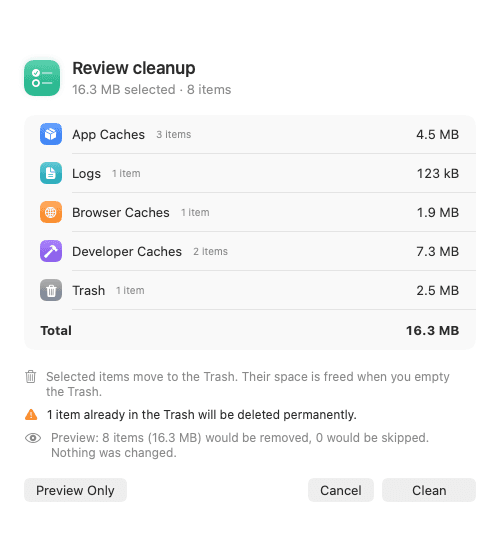
- One scan lists app caches, logs, the caches of eight browsers and developer caches (Xcode DerivedData and simulators, SwiftPM, CocoaPods, Homebrew, npm, Yarn, pip, Go, Gradle and Cargo), each with its size.
- Nothing is removed until you review the selection, and an optional preview shows what would happen without changing anything.
- What you clean moves to the Trash, so you can put it back until the Trash is emptied. The Trash itself starts unselected, because emptying it is permanent.
- “Never Offer This” keeps a file or folder out of Clean for good; the exclusion is enforced at the moment of removal, not only on screen.
- It never asks for an administrator password. Full Disk Access is optional; it lets MacCleaner measure the Trash and a few app caches.
After you clear a cache
- Expect apps and websites to rebuild what they need; the space will partly come back into use.
- If you cleared website data, sign in again where needed.
- Empty the Trash only once you’re happy everything still works.
Wondering whether a cleaner app is worth it, or which one? Read is a Mac cleaner safe? and our roundup of CleanMyMac alternatives, or browse all Mac cleanup and disk space guides.
Sources
- Apple Support: Optimize storage space on your Mac
- Apple Support: Clear your cache and cookies in Safari on Mac
- Apple Support: If Safari doesn’t work as expected on Mac
- Google Chrome Help: Delete browsing data in Chrome
- Apple Support: Go directly to a specific folder on Mac
- Apple Support: Delete files and folders on Mac
- Apple Support: Start up your Mac in safe mode
- Apple Support: About System Integrity Protection on your Mac
- MacPaw knowledge base: Safety Database
- MacCleaner product page (features, permissions, requirements)
More on this topic: Cleanup & disk space guides · MacCleaner
 Cleanup & disk space
 Temperature & fans