Screen Recording permission on a Mac: what it allows and how to manage it
What the Screen & System Audio Recording permission on a Mac lets an app do, how to allow or revoke it, and why screenshot apps ask for it at all.
By winterzxzzUpdated 3 min read
On a Mac, you decide which apps and websites may record your screen and system audio. The setting is called Screen & System Audio Recording, and it lives in System Settings → Privacy & Security. Screenshot tools, screen recorders and screen-sharing apps typically show up in it. This guide explains what the permission allows, how to grant or take it back, and how to judge whether an app deserves it, based on Apple’s Mac User Guide as of October 2026. We make a screenshot app, MacScreenShot, which asks for this one permission and nothing else, so we’ll use it as the example.
What the permission lets an app do
Apple’s guide frames it as a list you control: which apps and websites get to capture your screen and the sound your Mac plays. In practice that means an app can capture what other apps show on screen, not only its own windows (a few apps, such as Apple TV, block captures of their content). That’s exactly what a screenshot or recording tool needs, and also why it’s worth being picky.
The same list also controls system audio. For each app you can allow the screen and audio together, or audio on its own.
Apple’s own screenshot shortcuts, ⇧⌘3, ⇧⌘4 and ⇧⌘5, are part of macOS; the list in Privacy & Security is about third-party apps and websites.
Allow or revoke screen recording for an app
- Choose Apple menu → System Settings, then click Privacy & Security in the sidebar (you may need to scroll).
- Click Screen & System Audio Recording.
- Use the switch next to each app. Depending on the app, you can allow both the screen and audio, or only audio.
- If an app you want isn’t in the list, click the add button below it and navigate to the app.
If an app you rely on stops capturing, this list is the first place to look: make sure its switch is still on.
How to tell whether an app deserves it
Screen access is one of the most sensitive permissions on a Mac. A few questions help:
- Does the app’s job need it? A screenshot tool, recorder or screen-sharing app does. A note-taking app or a calculator doesn’t.
- Where do captures go? Look for a clear statement on whether images are uploaded. Apple notes that what third-party apps and websites collect is governed by their own terms and privacy policies.
- What else does it ask for? Each extra permission (Accessibility, Input Monitoring, Full Disk Access) widens what the app can do. More isn’t automatically bad, but each one should map to a feature you use.
- Is there an account? A required sign-in often means a server somewhere is part of the workflow.
Revisit the list now and then and switch off apps you tried once and no longer use.
A screenshot app that asks for one permission
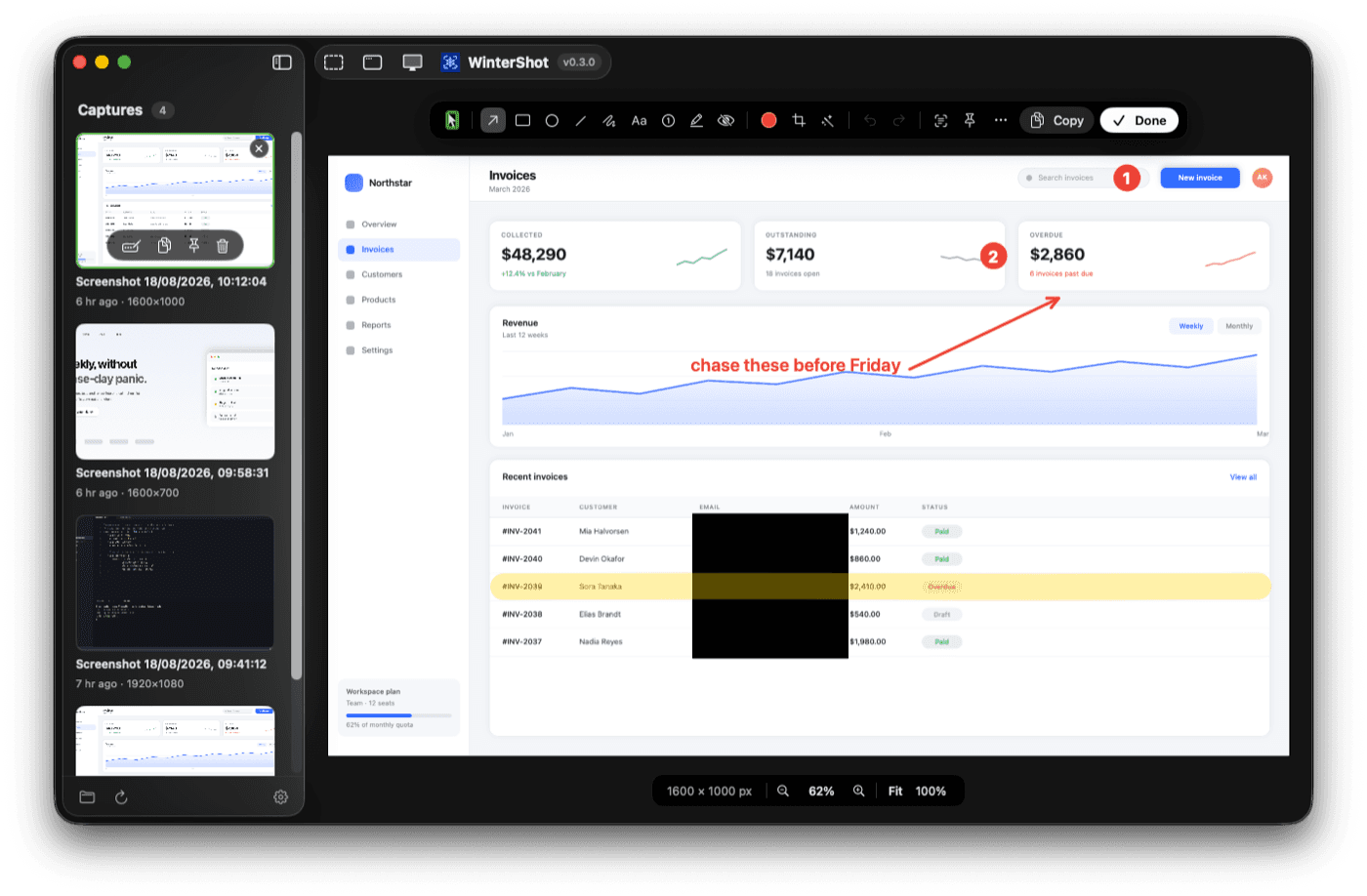
We designed MacScreenShot around this question. It needs exactly one permission, Screen Recording, and nothing else: no Accessibility, no Input Monitoring, no account. Captures and recordings are processed on your Mac, and OCR runs through Apple Vision on device, so nothing is uploaded.
What you get for that one switch:
- A frozen-screen selector on ⌘⇧4 (re-recordable) that lifts windows out of a dimmed backdrop.
- Nine annotation tools that stay editable, saved in a sidecar file next to the PNG.
- Gradient backdrops, OCR, and pinning a capture above your other windows.
- Screen recordings that open in a studio editor with click-to-zoom, exported as 60 fps MP4.
MacScreenShot needs macOS 14 or later on Apple Silicon. Its builds aren’t notarized yet, so the first time you open it, click Open Anyway in System Settings → Privacy & Security. For the built-in shortcuts, read how to take a screenshot on a Mac; to compare tools, see the best screenshot apps for Mac. More guides are in the screenshots category, and the full feature list is on the MacScreenShot page.
Sources
- Apple Mac User Guide, “Control access to screen and system audio recording on Mac”: support.apple.com/guide/mac-help/mchld6aa7d23/mac
- Apple Mac User Guide, “Take screenshots or screen recordings on Mac”: support.apple.com/guide/mac-help/mh26782/mac
- MacScreenShot product page (permissions, features, requirements)
More on this topic: Screenshots & screen recording guides · MacScreenShot
 Screenshots & screen recording