Offline voice to text on Mac: what really stays on your device
How to get offline voice to text on a Mac: when macOS Dictation runs on device, how local Whisper works, model sizes, and a privacy checklist for any app.
By winterzxzzUpdated 6 min read
“Offline” is the most abused word in dictation marketing. For voice to text, it should mean one precise thing: the sound of your voice is turned into text by software on your Mac, and neither the audio nor the transcript has to leave it. This guide shows how to tell whether that’s true for the tool you use, what your options are on macOS, and how to set up fully local dictation in a few minutes.
Three places your speech can be transcribed
- On your Mac. A speech model runs locally. Works with Wi-Fi off; nothing is uploaded.
- On a vendor’s server. Audio is streamed or uploaded, transcribed in the cloud, and text comes back. Accuracy can be excellent, but you depend on the network and on the vendor’s retention policy.
- It depends. Some tools pick one or the other based on your hardware, language or settings. That’s where most confusion comes from, and it’s exactly the situation with the Dictation feature built into macOS.
Does macOS Dictation work offline?
Sometimes, and Apple is careful not to promise more than that. Its privacy page for Siri and Dictation says your device will indicate in Keyboard settings whether your audio and transcripts are processed on device; otherwise, “the things you dictate are sent to and processed on the server.” The help page for Dictation points you to the same place to check whether general text dictation is “processed on your device and not sent to Siri servers.”
How to check on your own Mac
- Open System Settings → Keyboard and find the Dictation section.
- Read the note under the Dictation switch about where your dictation is processed.
- For a practical sanity check, turn off Wi-Fi, open a text editor and start dictation. If it still produces text, the language you’re using is being handled on device.
A few more details from Apple’s documentation worth knowing:
- Audio is not stored unless you opt in to Improve Siri and Dictation (the “Share Audio Recordings” prompt). If you opt in, Apple may review a sample of stored audio.
- A history of your Siri and Dictation interactions is stored on your device, and request data on Apple’s side is associated with a random identifier that rotates multiple times per hour. Apple says it may retain and use that data for up to two years.
- Dictation adds commas, periods and question marks automatically in supported languages, and stops when it hears no speech for 30 seconds.
- Dictation is not available in all languages or regions, and features vary.
For short notes in a supported language, built-in Dictation on device is a perfectly good answer. Its gap is predictability: whether a given language runs locally isn’t something you control, and Apple doesn’t publish a list on the help page.
Whisper on device: how local transcription actually works
Many private dictation apps on the Mac are built on OpenAI’s Whisper speech recognition model, and many of them, MacVoice included, run it through whisper.cpp, an open-source (MIT) C/C++ port. Its README treats Apple Silicon as a primary target, with optimizations through ARM NEON, the Accelerate framework, Metal and Core ML, so inference can run on the GPU and the Core ML encoder can use the Neural Engine.
The model file is downloaded once and then lives on your disk. From then on, no connection is needed. Here are the sizes whisper.cpp lists for the standard models:
| Model | Disk | Memory |
|---|---|---|
| tiny | 75 MiB | ~273 MB |
| base | 142 MiB | ~388 MB |
| small | 466 MiB | ~852 MB |
| medium | 1.5 GiB | ~2.1 GB |
| large | 2.9 GiB | ~3.9 GB |
Bigger models are generally more accurate and slower; smaller ones answer faster and use less memory. whisper.cpp also supports quantized models, which shrink disk and memory use further. For everyday dictation in English, start with a small model and only move up if it keeps tripping over your vocabulary. For other languages you need a multilingual model, and Medium or Large-v3 are the usual choices.
Set up fully offline dictation with MacVoice
MacVoice is our pay-once dictation app. It runs Whisper on your Mac via a pinned, checksum-verified whisper.cpp build, keeps audio in memory only, and types the result at your cursor in any app. It needs macOS 14 or later on Apple Silicon (M1 or newer). Here’s the whole setup:
- Install the app. Open the disk image and drag MacVoice into Applications.
- Open it the first time. The build isn’t notarized yet, so open MacVoice once, then click Open Anyway in System Settings → Privacy & Security and confirm with Open. (Alternatively run
xattr -cr /Applications/MacVoice.apponce.) - Grant the three permissions. Microphone captures your voice, Input Monitoring detects the push-to-talk key, and Accessibility types into the focused app.
- Download a Whisper model. Open Models in the sidebar. It recommends a model for English and one for other languages based on your Mac’s memory, chip and free space, and lists 49 in all, from Tiny to Large v3 Turbo, each checked against its published SHA-256 checksum. Any other ggml Whisper file can be added with Add Model → Import Model…
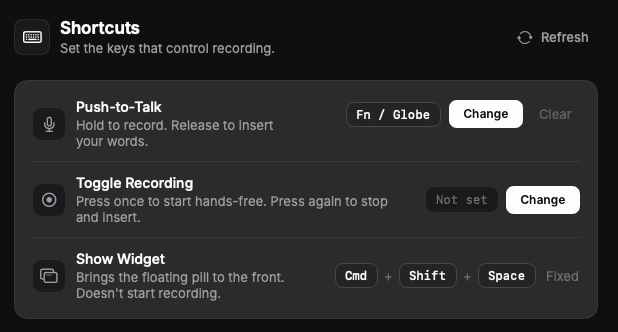
- Pick your push-to-talk key. Keep Fn/Globe or record any key or modifier chord.
- Dictate. Put the cursor anywhere, hold the key, speak, release. Turn Wi-Fi off if you want to prove to yourself that nothing needs the network.
If you ever prefer a server, MacVoice can instead send audio to any OpenAI-compatible /audio/transcriptions endpoint you configure. That mode is off unless you set it up, and it’s the only case where your voice leaves your Mac.
A privacy checklist for any dictation app
Whatever you end up using, these are the questions that separate “private” from “private-ish”:
- Where is speech transcribed? Look for an explicit statement, not just “secure.” Wispr Flow, for example, states plainly that “transcription always happens in the cloud,” which is honest and tells you it isn’t an offline tool.
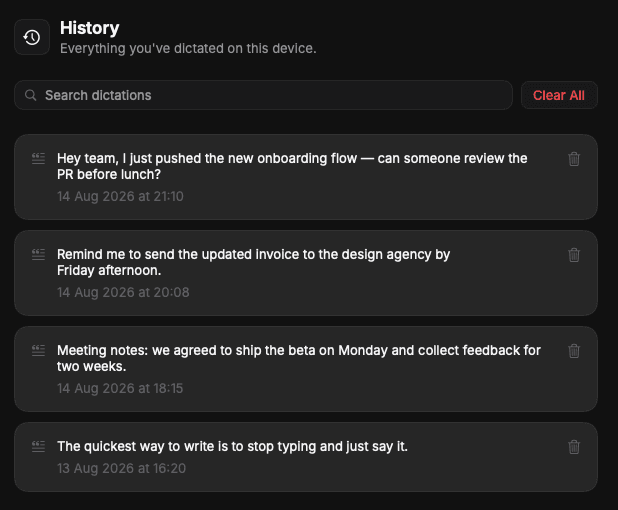
- Is audio written to disk? MacVoice never writes it; its history stores only text and timestamps.
- What about passwords? Text dictated into secure fields should never land in a history. MacVoice skips it.
- Is there an account? An account usually means server-side data. MacVoice has none.
- Does it work with the network off? The simplest test there is.
When a cloud tool is the better choice
Local isn’t automatically better for everyone. Cloud dictation makes sense if you’re on an Intel Mac (Superwhisper’s FAQ says Intel Macs work best with its cloud models), if you need the same dictation on Windows or a phone, or if you want an AI model to rewrite your speech into a polished email. Our roundup of Superwhisper alternatives walks through those trade-offs, and MacVoice vs MacWhisper compares two local-first apps head to head.
If your main use is talking to AI coding tools, local push-to-talk is a natural fit: see how to dictate prompts into Claude Code and Cursor. More guides live in the voice dictation category, and the full feature list is on the MacVoice page.
Sources
- Apple Support: Use Dictation on Mac
- Apple: Ask Siri, Dictation & Privacy
- whisper.cpp README (Apple Silicon support, model sizes, quantization, license)
- wisprflow.ai/privacy (cloud transcription)
- superwhisper.com (Intel Macs and cloud models)
- MacVoice product page (features, requirements, price)
More on this topic: Voice dictation guides · MacVoice
 Voice dictation